Change queue access

Enter password

Enter the password to open the change queue and review drafts.

V20260505.1901
Stage deploy healthy · Updated May 5, 3:01 PM

Viewing the current page. Start typing in the proposed side to make changes.

Current: One-Time Setup Instructions

Administrative Portal > Integrations > WhenToWork > One-Time Setup Instructions

Step 1. Obtain your integration key from When To Work

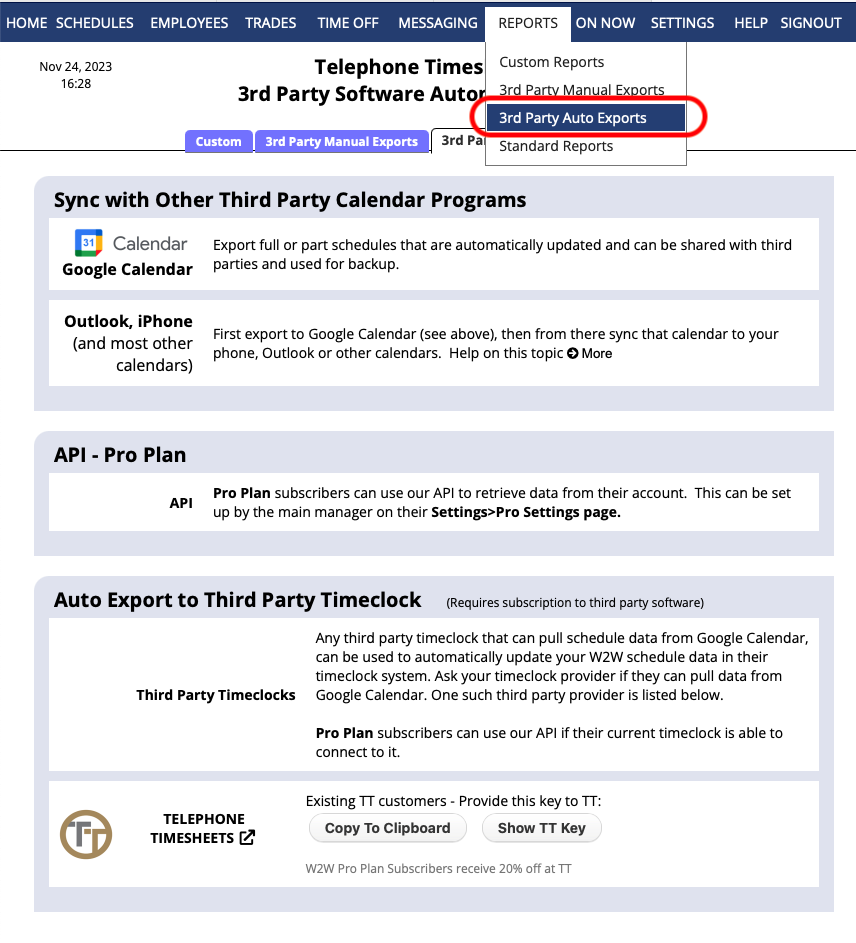
To obtain the key, login to the WhenToWork administrative portal and click on the Reports —> 3rd Party Auto Exports menu as shown here.
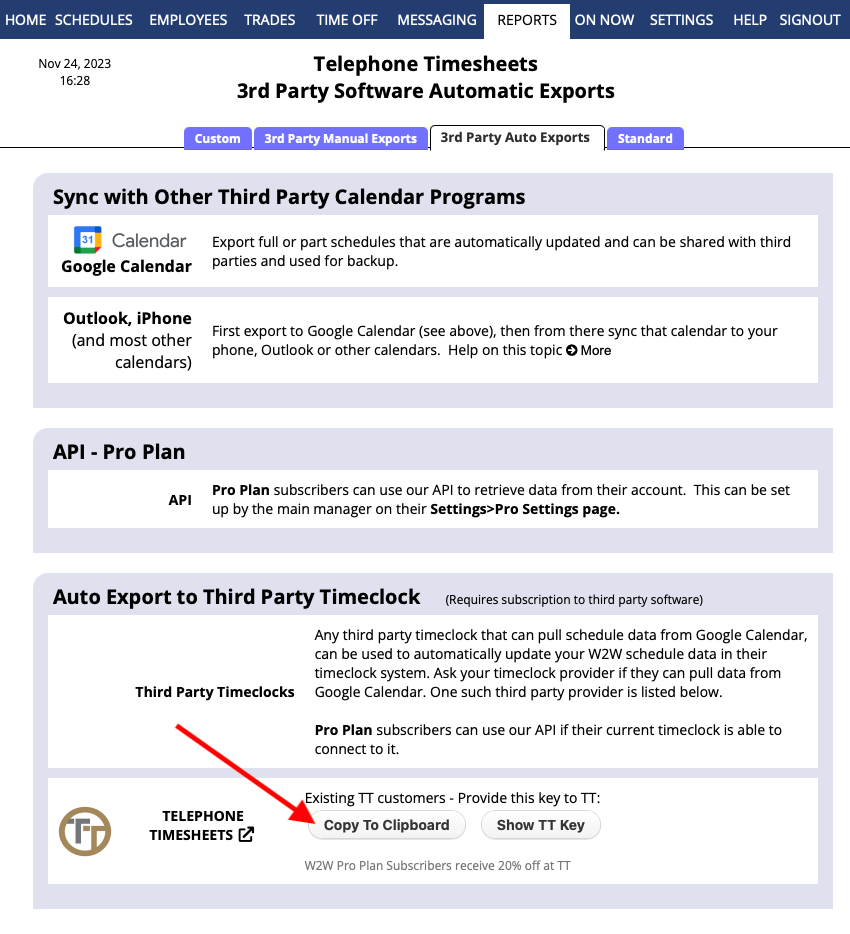
Clock on the Copy To Clipboard button so you can then paste the key into Telephone Timesheets.
Step 2. Enter your W2W integration key in Telephone Timesheets

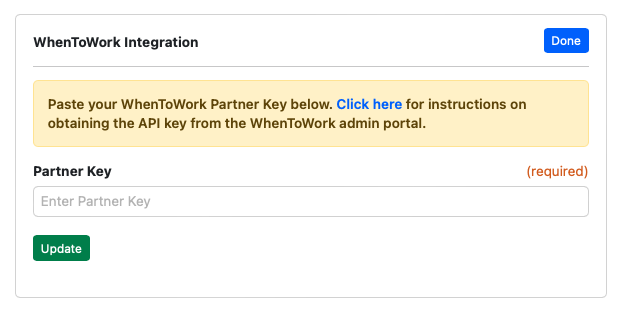
To paste the key into Telephone Timesheets, go to the Integrations —> WhenToWork page.
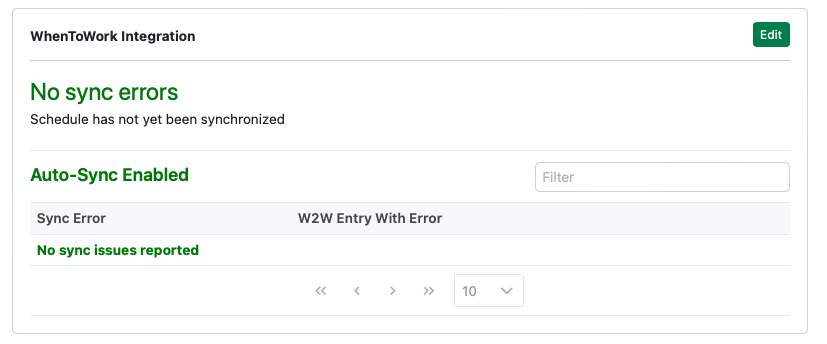
Once the integration is established, you can see any errors that might have occurred by returning to the Integrations —> WhenToWork page.
Proposed: One-Time Setup Instructions

Administrative Portal > Integrations > WhenToWork > One-Time Setup Instructions

Step 1. Obtain your integration key from When To Work

To obtain the key, login to the WhenToWork administrative portal and click on the Reports —> 3rd Party Auto Exports menu as shown here.

Clock on the Copy To Clipboard button so you can then paste the key into Telephone Timesheets.

Step 2. Enter your W2W integration key in Telephone Timesheets

To paste the key into Telephone Timesheets, go to the Integrations —> WhenToWork page.

Once the integration is established, you can see any errors that might have occurred by returning to the Integrations —> WhenToWork page.