Current: Editing Employees
The Edit Employee form uses the same overall layout as Add Employee, but it lets you revise a live employee record that may already be tied to schedules, time entries, payroll, text messaging, onboarding, and employee-app access.
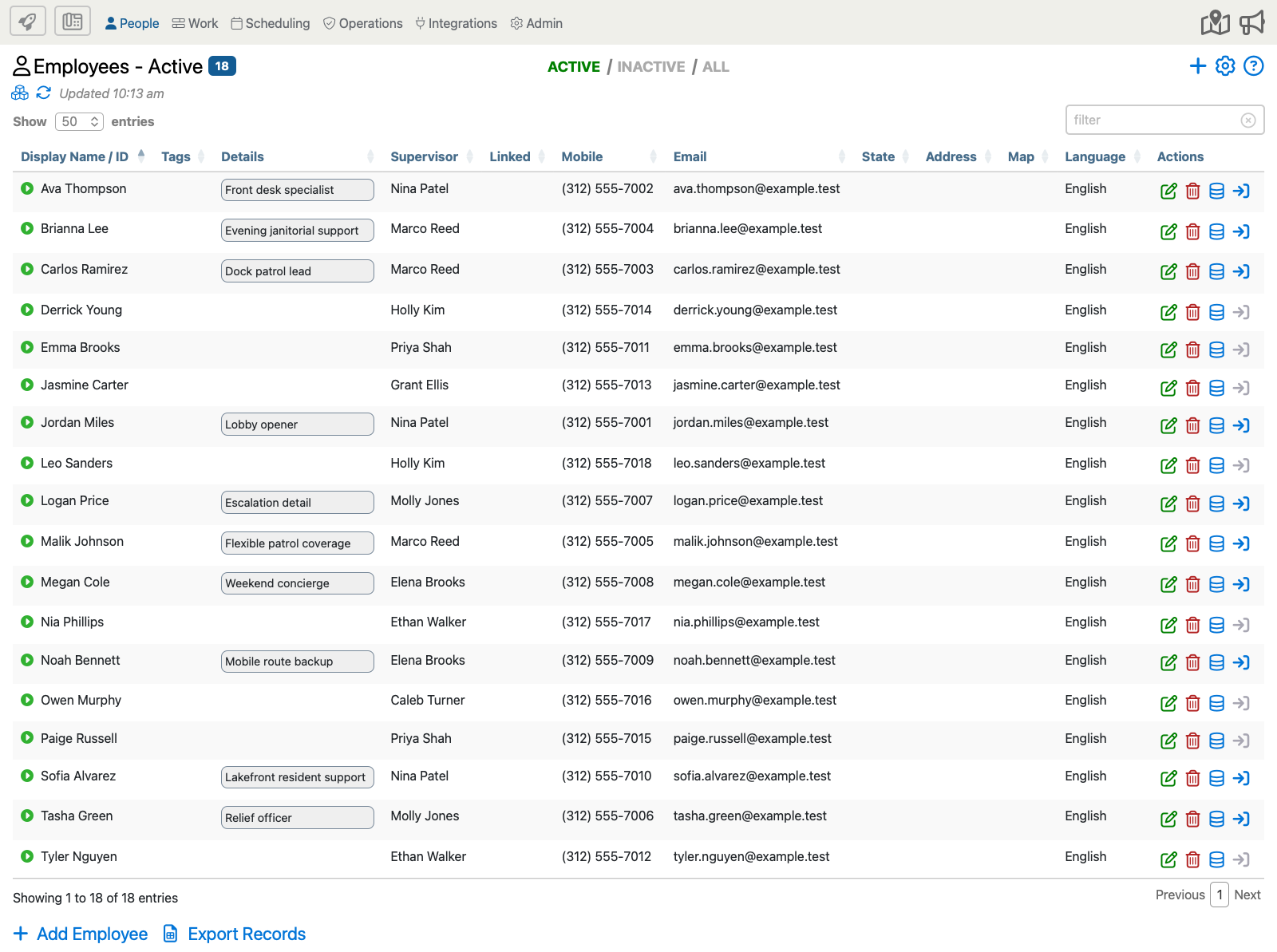
Start from People > Employees. To revise an existing employee, find the record you want and click the green pencil in the Actions column.
Once the edit form opens, review the full page below and use the blue i markers to jump to the matching explanation for each visible option.

This example shows the fullest version of the edit form. Depending on how your company is set up, you may see fewer options or additional payroll, accounting, travel, or onboarding fields.
Option Descriptions
Basic Employee Information
First Name
Update the first name only when the employee's legal or everyday record needs to be corrected.
Last Name
Update the last name when the employee's record should reflect a corrected or current surname.
Display Name
This is the name most supervisors and office users will see throughout the portal. Update it when the employee should appear differently in lists, schedules, or reports.
Employee Supervisor
Change the supervisor assignment when responsibility for the employee record moves to another supervisor or management chain.
Phone Number
Update the phone number carefully because it can affect clock-in, messaging, and employee communication workflows.
Language
Change the language when the employee should receive prompts and guidance in a different supported language.
Tags
Update tags when the employee's qualifications, role labels, or searchable filters change.
Address
Keep the address current when your company uses employee location, travel planning, or proximity-based job matching.
Advanced Employee Setup
Employment Status
Use this field when the employee's employment state changes and office staff need to see that status reflected in the record.
Employment Status Notes
Update the notes when the employee record needs additional context around leave, return timing, or other status details.
Supervisor Group
When supervisor groups are enabled, update this field if the employee should be managed by a different supervisor group.
External ID
Update this only when the employee's payroll, HR, or outside-system identifier changes, or when the company needs a different ID for clock-in workflows.
Station PIN
Update the station PIN when kiosk-style or fixed-station clock-in access needs to change for that employee.
Employee Details
Keep this section current when supervisors or office staff need updated employee-specific notes in the portal.
Department
Update the department when the employee moves into a different business unit, service line, or internal grouping.
Start Date
Correct the start date when the record needs a more accurate employment start point.
Birthday
Use this only if your company keeps birthday information as part of the employee record.
Anniversary
Update the anniversary date when your company tracks work anniversaries or related milestones.
ADP IVR Fields
ADP-connected companies may also see badge, profile, or PIN values for phone workflows. Update those only when your ADP-connected setup requires it.
Travel And Scheduling
Maximum Commute Range
Update this when the employee's expected travel distance or job-assignment range changes.
Enable Travel Tracking
Turn this on or off when the employee should start or stop generating travel activity in the system.
Max Hours Daily
Use this limit when the employee should not be scheduled beyond a set number of hours in one day.
Max Shifts Daily
Update this when the employee should be limited to a certain number of shifts per day.
Max Hours Weekly
Use this when weekly hour limits matter for the employee's schedule planning.
Max Days Weekly
Use this when the employee should not be scheduled more than a set number of days in one week.
Payroll And Messaging
Base Pay Rate
Update the base pay rate only when the employee's default payroll rate should change. Confirm rate changes carefully because they can affect downstream payroll calculations.
ADP Base Pay Rate
ADP-connected companies may show an ADP-managed base pay rate instead of an editable field. In those accounts, this value reflects data controlled through ADP.
Home Tax Location
Update this only when payroll or compliance workflows require a different tax-location mapping for the employee.
Send Texts From
Use this only when the employee should receive texts from a different company number than the normal default.
Status And Miscellaneous Options
Employee Active / Inactive Status
Use this when the employee should be hidden from day-to-day lists without deleting history. This is the normal way to retire an employee record from active use.
Highlight Color
Update the highlight color only when your company uses color coding and the employee should follow a different visual convention.
Enable GPS Requests For IVR
Turn this on or off only when the employee should start or stop receiving GPS prompts in supported IVR workflows.
Enable Voice Fingerprints For IVR
Use this only when your company uses voice-based identity controls for phone workflows and the employee should participate in that process.
Exempt Employee From Onboarding
Turn this on only when the employee should skip the normal onboarding flow because they are already fully set up or do not need the standard onboarding steps.
Save The Updated Employee
- Review identity, scheduling, and payroll-related changes carefully before saving.
- Use advanced options only when your company actively depends on them.
- Save the record, then return to People > Employees to confirm the employee still appears as expected in the list.