Change queue access

Enter password

Enter the password to open the change queue and review drafts.

V20260505.1901
Stage deploy healthy ยท Updated May 5, 3:01 PM

Viewing the current page. Start typing in the proposed side to make changes.

Current: Managing Dashboard Cards

Administrative Portal > Rocket Menu > Analytics Dashboards > Managing Dashboard Cards

Dashboards contain cards in rows of 4 or 2 graphs that track various selected metrics. These cards are dashboard specific, meaning different card setups that are tracking different metrics can be established on different dashboards.

Highlights of Dashboard Cards:

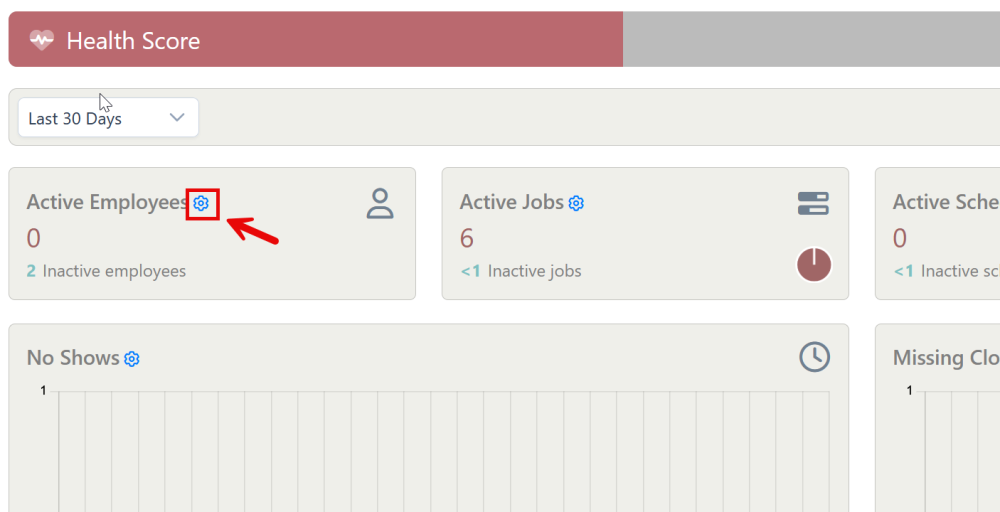
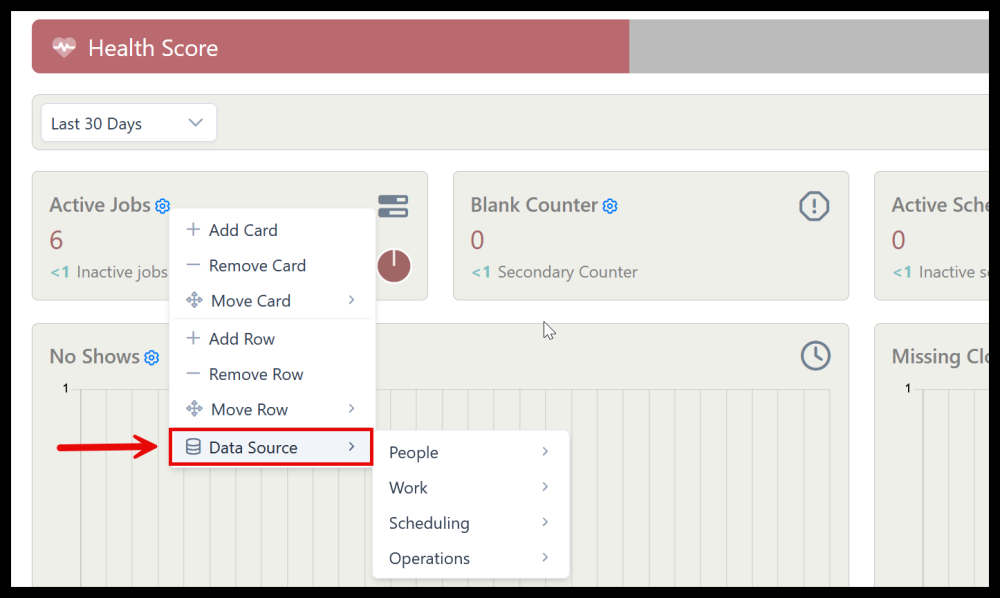
1. Clicking the gear icon on any dashboard card brings up a menu with card options including adding and removing and adding a data source.

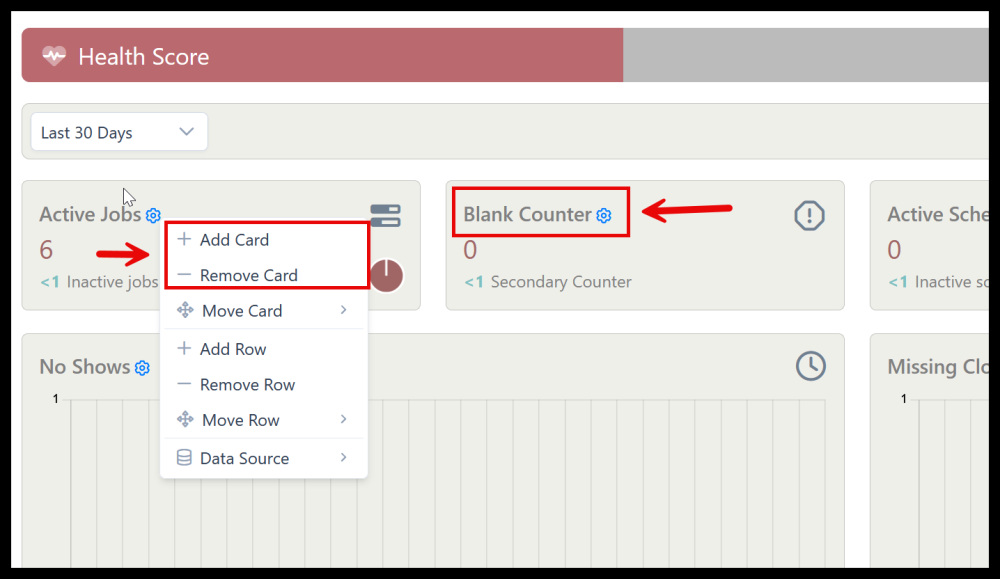
2. Click Add Card to add a blank card to the row (max 4 cards per row, or 2 graphs per row). Click Remove card to remove the card from the current row. You can also move a card by clicking Move Card.
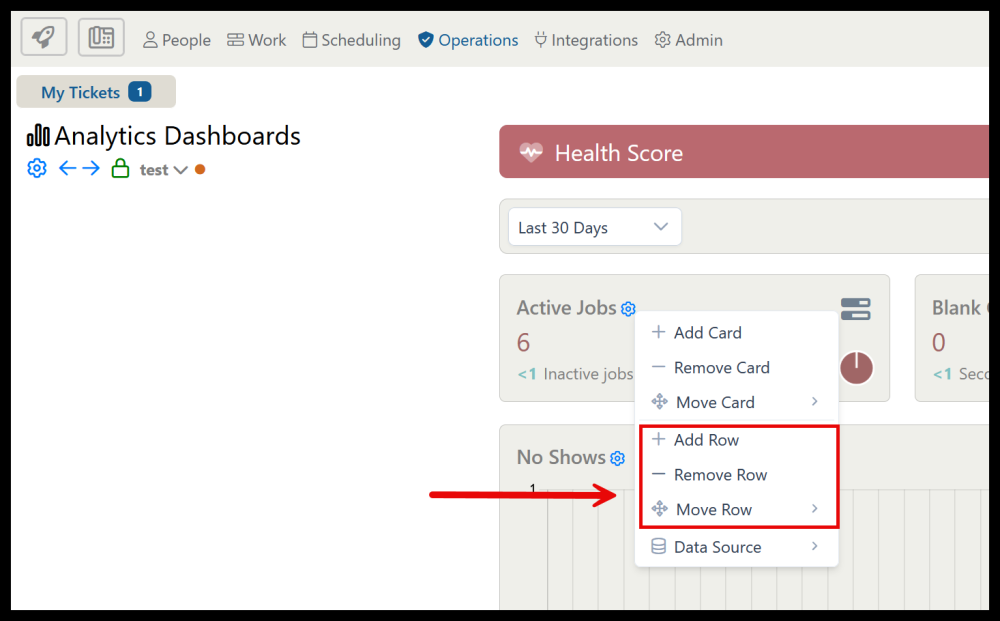
3. Click Add Row to add a row of blank cards. Click Remove Row to delete all of the card in the selected row. You can also move rows by selecting Move Row.
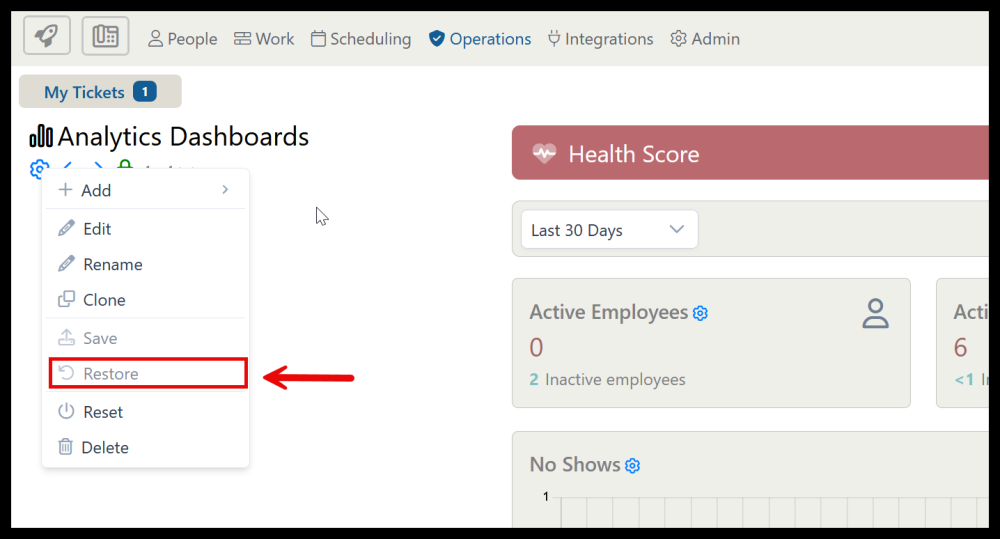
4. To restore a deleted card or graph, select restore in the Dashboard menu. This will restore the deleted card or graph.
5. To add a specific data source to a card to be used for tracking/metrics, select Data Source.
Proposed: Managing Dashboard Cards

Administrative Portal > Rocket Menu > Analytics Dashboards > Managing Dashboard Cards

Dashboards contain cards in rows of 4 or 2 graphs that track various selected metrics. These cards are dashboard specific, meaning different card setups that are tracking different metrics can be established on different dashboards.

Highlights of Dashboard Cards:

1. Clicking the gear icon on any dashboard card brings up a menu with card options including adding and removing and adding a data source.

2. Click Add Card to add a blank card to the row (max 4 cards per row, or 2 graphs per row). Click Remove card to remove the card from the current row. You can also move a card by clicking Move Card.

3. Click Add Row to add a row of blank cards. Click Remove Row to delete all of the card in the selected row. You can also move rows by selecting Move Row.

4. To restore a deleted card or graph, select restore in the Dashboard menu. This will restore the deleted card or graph.

5. To add a specific data source to a card to be used for tracking/metrics, select Data Source.