Change queue access

Enter password

Enter the password to open the change queue and review drafts.

Stage deploy healthy ยท Updated

Viewing the current page. Start typing in the proposed side to make changes.

Current: Breaks

Administrative Portal > Work > Breaks

Breaks covers the ways Telephone Timesheets can record unpaid break time. Breaks can be applied automatically from job or schedule rules, or started and ended by an employee during the shift.

Automatic Unpaid Breaks

Automatic unpaid breaks are deducted by the system based on the job or schedule settings. No employee action is required. For example, a job can deduct a 30-minute unpaid break after an employee has worked a minimum amount of time, and some accounts can repeat that deduction during longer shifts.

Configure the default automatic break rule on the job. A schedule can override the job rule when a specific shift pattern needs a different break length, threshold, or repeat behavior.
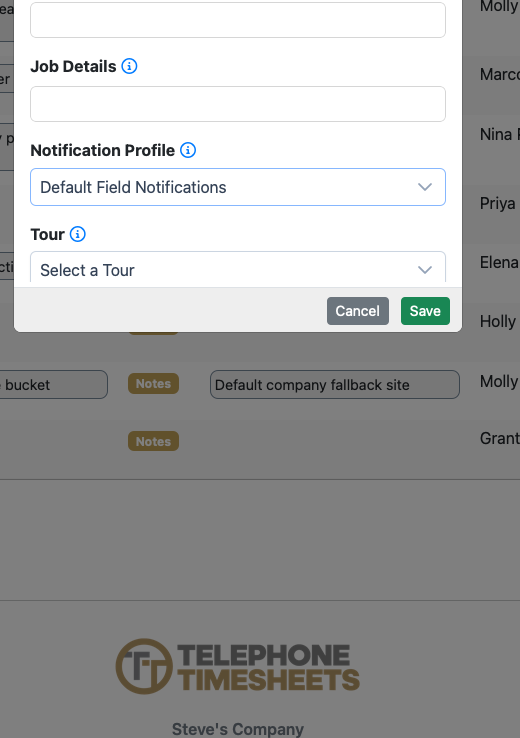
Edit Job break options showing unpaid break length and minimum time before break deduction.

Automatic unpaid-break settings control the break deduction itself. They do not decide whether a budget adjustment rule should count or ignore the deducted break. If your company uses budget adjustment rules, review the job or schedule budget settings for the separate ignore-unpaid-breaks budget adjustment option.

Employee-Initiated Breaks

Employee-initiated breaks are started and ended by the employee while working. These breaks are tracked separately from automatic unpaid-break deductions.

Employees can start or end an unpaid break by using the employee app, by texting the break command to the company's clock-in number, or by calling the clock-in number and following the break prompt when that workflow is enabled.

To allow phone and text breaks, open Admin > Settings > General Settings and enable the setting that allows employees to start and end breaks by calls or texts.

Reviewing Breaks On Time Entries

Break time appears with the time entry so supervisors can review the deducted or employee-entered break minutes alongside the shift. If a break needs correction, edit the time entry or break details from the time-entry workflow your company uses.
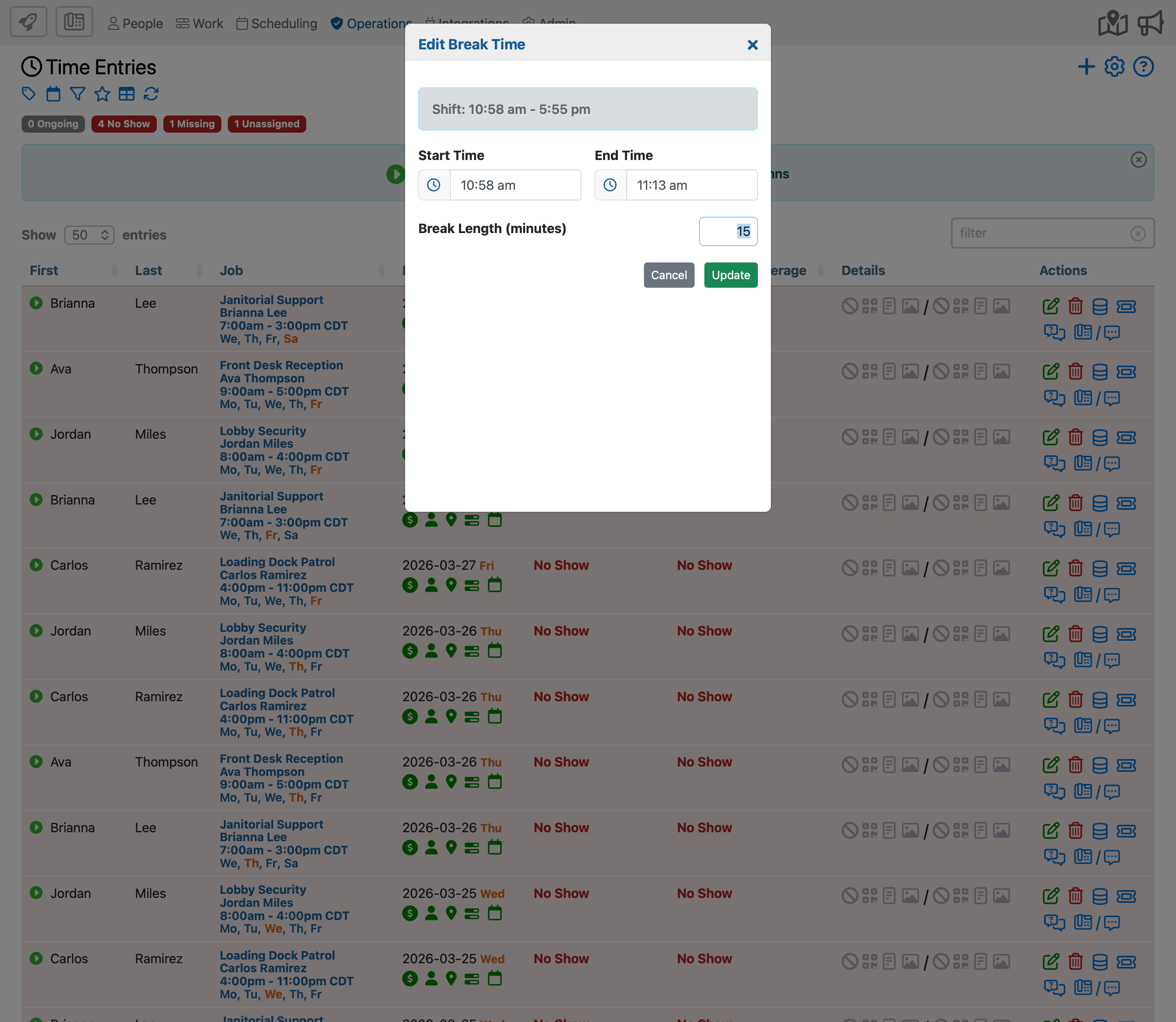
Time Entries page showing break information available for review.

Breaks And Budget Adjustments

The ignore-unpaid-breaks budget adjustment setting affects only budget adjustment calculations. It does not erase break history, stop automatic break deductions, change employee break controls, or remove break minutes from normal reporting.

Use the setting when a budget or minimum-pay style rule should compare the shift to its budget before an automatic unpaid break deduction is considered. Leave it off when the budget adjustment should use the worked time after unpaid break deductions.

Related pages: Editing Jobs, Editing Schedules, and Adjusting Hours Based On Budgets.

Proposed: Breaks

v000106/21/2026

Administrative Portal > Work > Breaks

Breaks covers the ways Telephone Timesheets can record unpaid break time. Breaks can be applied automatically from job or schedule rules, or started and ended by an employee during the shift.

Automatic Unpaid Breaks

Automatic unpaid breaks are deducted by the system based on the job or schedule settings. No employee action is required. For example, a job can deduct a 30-minute unpaid break after an employee has worked a minimum amount of time, and some accounts can repeat that deduction during longer shifts.

Configure the default automatic break rule on the job. A schedule can override the job rule when a specific shift pattern needs a different break length, threshold, or repeat behavior.

Edit Job break options showing unpaid break length and minimum time before break deduction.

Automatic unpaid-break settings control the break deduction itself. They do not decide whether a budget adjustment rule should count or ignore the deducted break. If your company uses budget adjustment rules, review the job or schedule budget settings for the separate ignore-unpaid-breaks budget adjustment option.

Employee-Initiated Breaks

Employee-initiated breaks are started and ended by the employee while working. These breaks are tracked separately from automatic unpaid-break deductions.

Employees can start or end an unpaid break by using the employee app, by texting the break command to the company's clock-in number, or by calling the clock-in number and following the break prompt when that workflow is enabled.

To allow phone and text breaks, open Admin > Settings > General Settings and enable the setting that allows employees to start and end breaks by calls or texts.

Reviewing Breaks On Time Entries

Break time appears with the time entry so supervisors can review the deducted or employee-entered break minutes alongside the shift. If a break needs correction, edit the time entry or break details from the time-entry workflow your company uses.

Time Entries page showing break information available for review.

Breaks And Budget Adjustments

The ignore-unpaid-breaks budget adjustment setting affects only budget adjustment calculations. It does not erase break history, stop automatic break deductions, change employee break controls, or remove break minutes from normal reporting.

Use the setting when a budget or minimum-pay style rule should compare the shift to its budget before an automatic unpaid break deduction is considered. Leave it off when the budget adjustment should use the worked time after unpaid break deductions.

Related pages: Editing Jobs, Editing Schedules, and Adjusting Hours Based On Budgets.