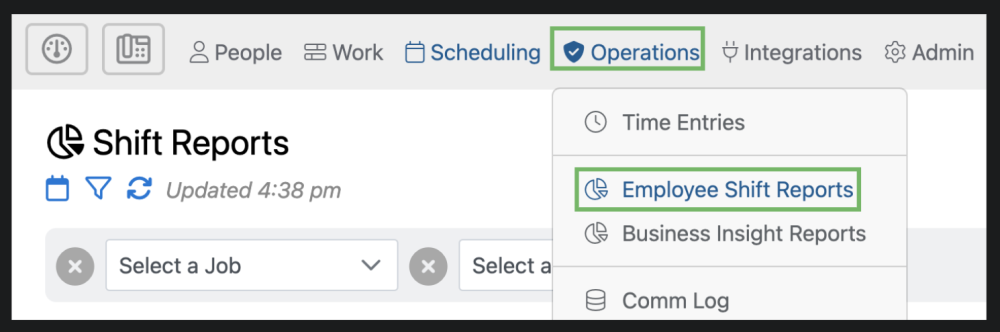
Current: Employee Shift Reports
The Employee Shift Reports page will be one that visit if you need to access specific incident reports submitted by employees. There is not a way to manually add in a shift report after the shift has already taken place.
Highlights of The Employee Shift Reports Page
The Employee Shift Reports page can be accessed by selecting “Operations” from the top menu and then “Employee Shift Reports” from the drop down.
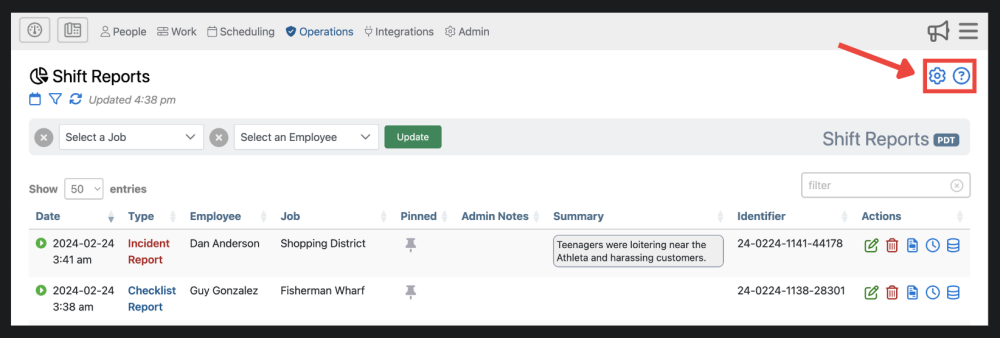
1. Here you can adjust settings  , and find additional information about the Employee Shift Reports page
  .
.
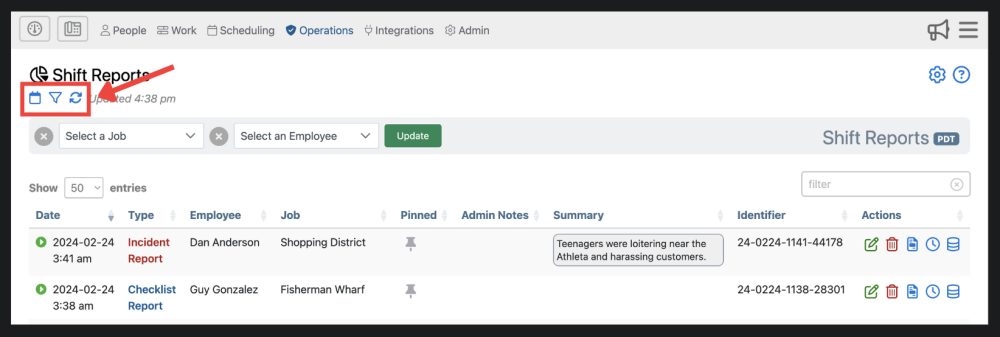
2. This is where you can view your shift reports on a day-by-day basis  , select a date range filter which will show only employee shift reports from that range
  , and refresh the Employee Shift Reports page
  .
.
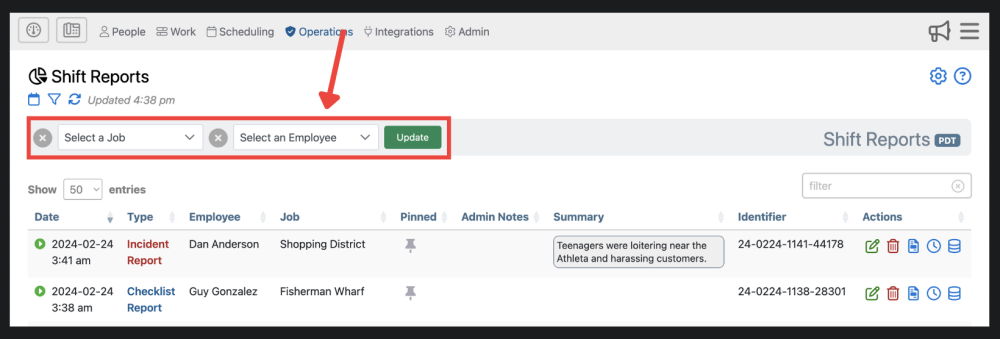
3. The drop down menus allow you view shift reports pertaining to a specific job or employee.
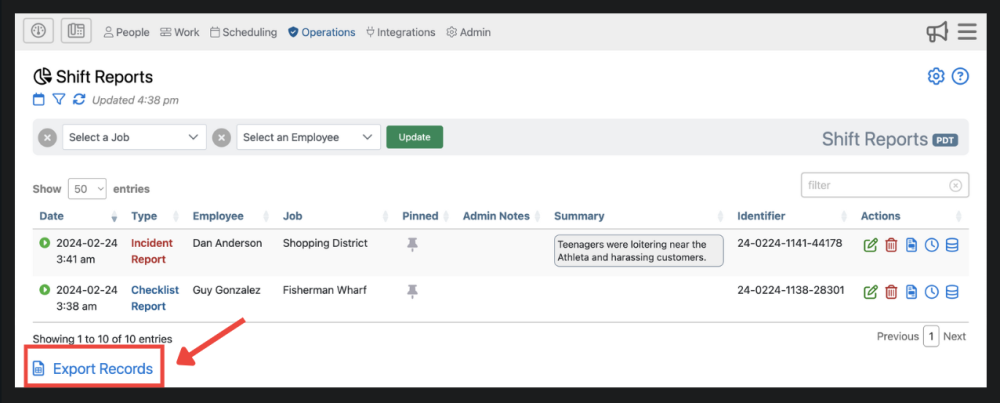
4. Here is where you can also download employee shift report records by clicking 
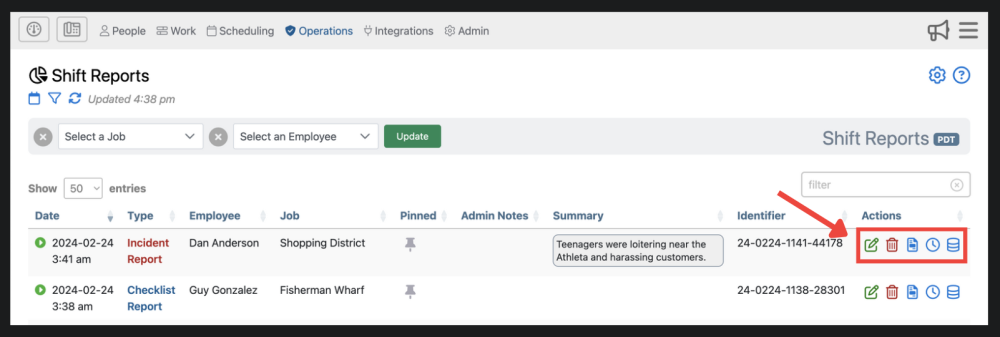
5. Navigating to the right of the employee you can edit the shift report  , delete the shift report
  , view the full report
  , go to the time entry connected to the report
  , or view the audit history
  .
.