Change queue access

Enter password

Enter the password to open the change queue and review drafts.

Stage deploy healthy · Updated

Viewing the current page. Start typing in the proposed side to make changes.

Current: Call Center Agent Menu

v000106/14/2026

Administrative Portal > Call Center Agent Menu

Call Center Agent Menu opens the agent status panel for administrators who receive or place calls from the Admin Portal. Use this menu to sign in or out as an available call center agent, choose where calls should ring, place outbound calls or texts, open contacts, and confirm which call-routing skills are active for the signed-in agent.

Inbound Call Center must be enabled by Telephone Timesheets support before incoming calls can route to agents. If the shortcut is visible but inbound routing is not enabled for your company, contact support@telephonetimesheets.com to enable the add-on.

Open The Call Center Agent Menu

Open the menu from the Call Center Agent shortcut in the upper-left Admin Portal toolbar. The shortcut opens the call-center status panel; it does not open the agent-number, dial-number, or contacts forms until the agent chooses one of those actions.

Admin Portal toolbar with the Call Center Agent Menu shortcut highlighted.

My Call Center Status

The first view is My Call Center Status. It tells the agent whether they are signed in to receive calls and shows the main actions available from the panel.
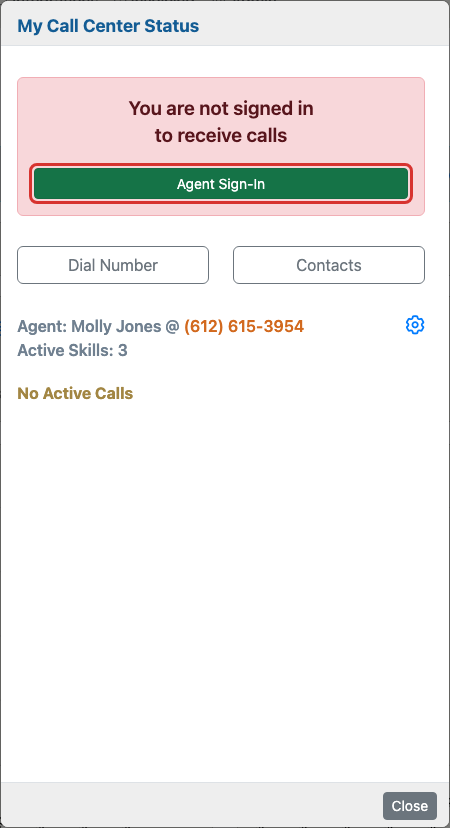
My Call Center Status panel showing the signed-out state and Agent Sign-In button.

After the agent signs in, the status panel changes to show where calls will ring, when the agent signed in, and how many call-routing skills are active.
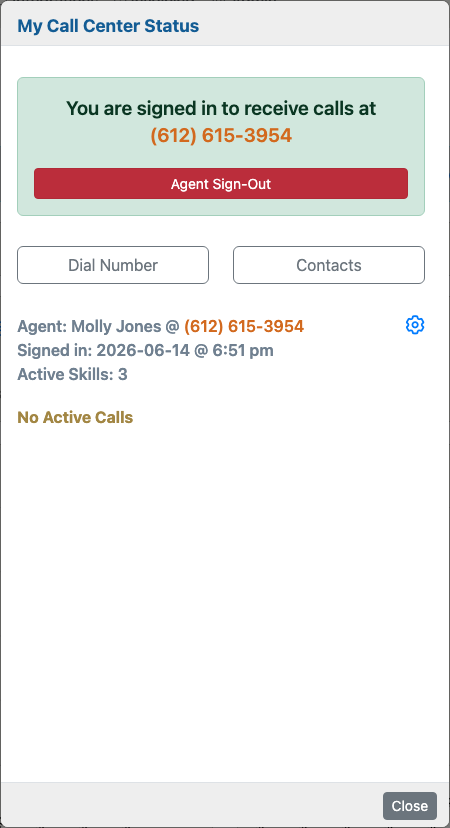
My Call Center Status panel showing the signed-in state, call-routing phone number, and active skills count.

Call Center Agent Menu Controls

Inbound Call Center prerequisite

Inbound Call Center is a company-level feature that must be enabled before incoming calls can route to portal agents. If it is not enabled, the panel explains that Telephone Timesheets can provide a dedicated toll-free number and asks the user to email support.

Agent status

The status card tells the agent whether they are currently signed in to receive inbound calls. When signed in, the panel shows the phone number where calls will ring and provides Agent Sign-Out. When signed out, it shows Agent Sign-In instead.

Main controls

Dial Number opens the call/text form. Contacts opens the call-center contact list. The blue settings gear opens the agent-number screen where the signed-in agent can choose a different call-routing phone number.

Update Agent Number

Use the settings gear in My Call Center Status to open the separate Update Agent Number view. This is its own form, so it should be shown separately from the status panel.
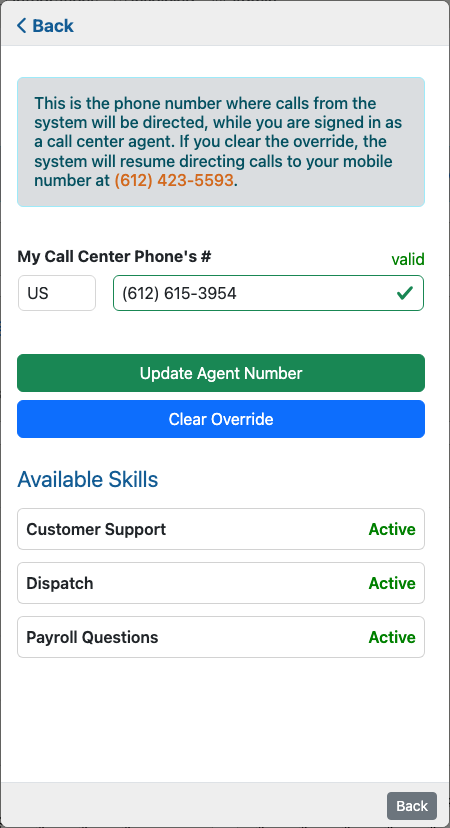
Update Agent Number form showing the call-center phone number and available skills.

My Call Center Phone's #

This is the phone number Telephone Timesheets uses when the agent receives call-center calls or places click-to-call calls. By default, the system uses the mobile number on the agent's user record. Use this field when the agent wants calls to ring a desk phone, dispatch phone, or another temporary number.

Update Agent Number saves the override. Clear Override removes the override and returns call routing to the agent's default mobile number.

Active and available skills

Skills help Telephone Timesheets route inbound calls to agents who are set up for the right kind of request. The main panel shows how many assigned skills are active for the agent. The agent-number screen can also show the available skills and whether each skill is active or inactive for that agent.

For example, an agent may be active for Customer Support and Dispatch, but inactive for Payroll Questions. Calls that require a skill are routed according to the company's call-center setup.

Dial Number And Send Text

Dial Number opens a separate call/text form. Use it when the agent needs to place an outbound call or send a text message from the portal.
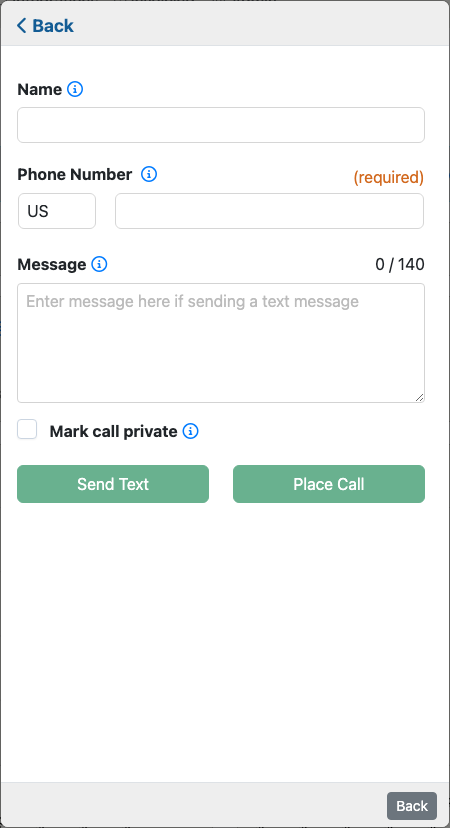
Dial Number and Send Text form showing name, phone number, message, privacy, and action controls.

Name

Use Name to label the outside party you are calling or texting. If the field is blank, the related activity is logged as an outgoing call or outgoing text.

Phone Number

Enter the phone number of the person or location you want to call or text. The country selector and validation indicator help confirm that the number is formatted correctly before the action is sent.

Message

Enter the text message you want to send when using Send Text. The character counter shows how much room remains based on the company's text-message limit.

Mark call private

Use Mark call private when the call log should be visible only to Primary supervisors and the person who initiated the call. This option applies to phone calls and is ignored for text messages.

Contacts

Contacts opens a separate call-center address book so an agent can find a saved destination and start a call or text from the contact row.
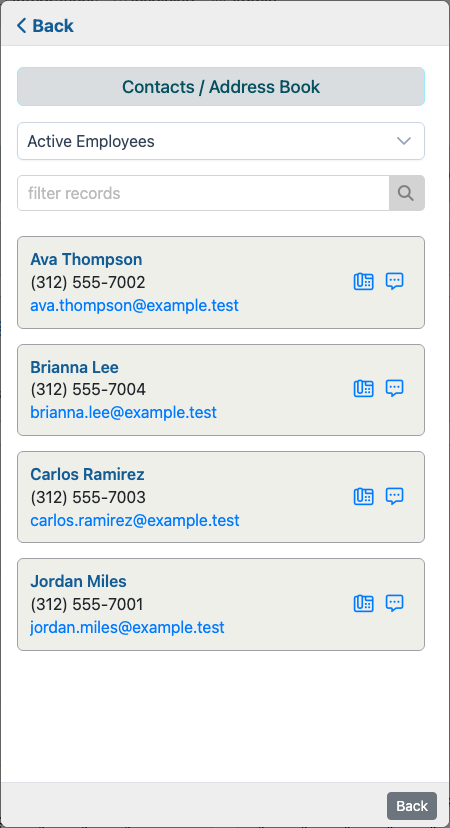
Call Center Contacts view opened from the Call Center Agent Menu.

Contact list filter

Use the contact type dropdown and filter box to narrow the address book before placing a call or sending a text.

Contact actions

Each contact row can show call and text shortcuts. Available actions depend on the user's call-center and messaging permissions.

When The Menu May Look Different

  • Inbound Call Center controls appear only when the feature is enabled for the company.
  • Dial Number and Contacts depend on the user's call-center and click-to-call permissions.
  • Skills appear only when the company has call-routing skills configured and assigned to agents.
  • The agent number may show the user's mobile number or an override number, depending on whether the agent has saved an alternate number.

Related pages: Call Center and Inbound Call Center.

Proposed: Call Center Agent Menu

v000106/14/2026

Administrative Portal > Call Center Agent Menu

Call Center Agent Menu opens the agent status panel for administrators who receive or place calls from the Admin Portal. Use this menu to sign in or out as an available call center agent, choose where calls should ring, place outbound calls or texts, open contacts, and confirm which call-routing skills are active for the signed-in agent.

Inbound Call Center must be enabled by Telephone Timesheets support before incoming calls can route to agents. If the shortcut is visible but inbound routing is not enabled for your company, contact support@telephonetimesheets.com to enable the add-on.

Open The Call Center Agent Menu

Open the menu from the Call Center Agent shortcut in the upper-left Admin Portal toolbar. The shortcut opens the call-center status panel; it does not open the agent-number, dial-number, or contacts forms until the agent chooses one of those actions.

Admin Portal toolbar with the Call Center Agent Menu shortcut highlighted.

My Call Center Status

The first view is My Call Center Status. It tells the agent whether they are signed in to receive calls and shows the main actions available from the panel.

My Call Center Status panel showing the signed-out state and Agent Sign-In button.

After the agent signs in, the status panel changes to show where calls will ring, when the agent signed in, and how many call-routing skills are active.

My Call Center Status panel showing the signed-in state, call-routing phone number, and active skills count.

Call Center Agent Menu Controls

Inbound Call Center prerequisite

Inbound Call Center is a company-level feature that must be enabled before incoming calls can route to portal agents. If it is not enabled, the panel explains that Telephone Timesheets can provide a dedicated toll-free number and asks the user to email support.

Agent status

The status card tells the agent whether they are currently signed in to receive inbound calls. When signed in, the panel shows the phone number where calls will ring and provides Agent Sign-Out. When signed out, it shows Agent Sign-In instead.

Main controls

Dial Number opens the call/text form. Contacts opens the call-center contact list. The blue settings gear opens the agent-number screen where the signed-in agent can choose a different call-routing phone number.

Update Agent Number

Use the settings gear in My Call Center Status to open the separate Update Agent Number view. This is its own form, so it should be shown separately from the status panel.

Update Agent Number form showing the call-center phone number and available skills.

My Call Center Phone's #

This is the phone number Telephone Timesheets uses when the agent receives call-center calls or places click-to-call calls. By default, the system uses the mobile number on the agent's user record. Use this field when the agent wants calls to ring a desk phone, dispatch phone, or another temporary number.

Update Agent Number saves the override. Clear Override removes the override and returns call routing to the agent's default mobile number.

Active and available skills

Skills help Telephone Timesheets route inbound calls to agents who are set up for the right kind of request. The main panel shows how many assigned skills are active for the agent. The agent-number screen can also show the available skills and whether each skill is active or inactive for that agent.

For example, an agent may be active for Customer Support and Dispatch, but inactive for Payroll Questions. Calls that require a skill are routed according to the company's call-center setup.

Dial Number And Send Text

Dial Number opens a separate call/text form. Use it when the agent needs to place an outbound call or send a text message from the portal.

Dial Number and Send Text form showing name, phone number, message, privacy, and action controls.

Name

Use Name to label the outside party you are calling or texting. If the field is blank, the related activity is logged as an outgoing call or outgoing text.

Phone Number

Enter the phone number of the person or location you want to call or text. The country selector and validation indicator help confirm that the number is formatted correctly before the action is sent.

Message

Enter the text message you want to send when using Send Text. The character counter shows how much room remains based on the company's text-message limit.

Mark call private

Use Mark call private when the call log should be visible only to Primary supervisors and the person who initiated the call. This option applies to phone calls and is ignored for text messages.

Contacts

Contacts opens a separate call-center address book so an agent can find a saved destination and start a call or text from the contact row.

Call Center Contacts view opened from the Call Center Agent Menu.

Contact list filter

Use the contact type dropdown and filter box to narrow the address book before placing a call or sending a text.

Contact actions

Each contact row can show call and text shortcuts. Available actions depend on the user's call-center and messaging permissions.

When The Menu May Look Different

  • Inbound Call Center controls appear only when the feature is enabled for the company.
  • Dial Number and Contacts depend on the user's call-center and click-to-call permissions.
  • Skills appear only when the company has call-routing skills configured and assigned to agents.
  • The agent number may show the user's mobile number or an override number, depending on whether the agent has saved an alternate number.

Related pages: Call Center and Inbound Call Center.