Current: Rocket Menu
Rocket Menu is the quick-launch menu behind the rocket icon in the upper-left corner of the Admin Portal. Use it to open analytics tools, refresh the portal, log out, and switch companies when your login has access to more than one account.
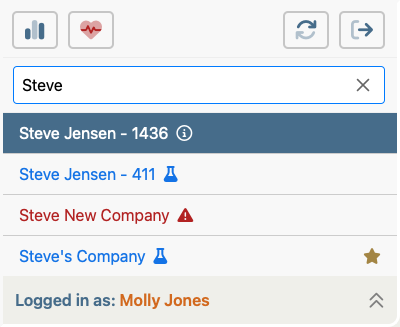
This illustration uses the shared top-level Admin Portal menu template for menu-bar pages and shows the Rocket Menu opened from that standard bar. Future menu pages can reuse the same bar image and add only the page-specific highlight, submenu, or banner.
The exact buttons and company list can vary by user role, enabled features, and how many companies your login can access.
Rocket Menu Options
Analytics Dashboards
Opens the analytics workspace for the current company. Use this area to review dashboard cards, graphs, and trend summaries.
Health Center
Opens Health Center for the current company so you can review the health score and the recommendations behind it. This button may be hidden when Health Center is not enabled for the signed-in user.
Reload App
Reloads the Admin Portal. This is useful when data or settings have changed and you want the portal to re-synchronize without signing out.
Log Out
Signs you out of the Admin Portal and returns you to the login flow.
Search box
Filters the company list so you can find another account more quickly. This search field appears when your login can access enough companies that filtering is helpful.
Company list
Shows the companies available to your login. Select a company to switch into that account.
Current company marker
The current company is marked in the list so you can see which account you are already working in before you switch.
Logged in as
The footer confirms which user is currently signed in. Use the footer bar to close the Rocket Menu when you are done.
Why This Page Uses The Standard Menu Bar
Rocket Menu is part of the top-level Admin Portal navigation, so this page now uses the same full menu-bar template that other menu pages can share. That keeps the manual consistent and makes it easier to refresh the base menu image once if the top bar changes later.
How Company Switching Works
If you select another company from the Rocket Menu, Telephone Timesheets switches to that company and reloads the Admin Portal so the screen refreshes with that account's data and permissions.
If your login has access to only one company, the company list may not appear. In that case, the Rocket Menu acts mainly as a quick-launch menu for the buttons across the top.
When The Menu May Look Different
- Health Center may be hidden for some users and companies.
- The company search box appears only when there are enough available companies to make filtering useful.
Related pages: Analytics Dashboard and Health Center.