Change queue access

Enter password

Enter the password to open the change queue and review drafts.

V20260505.1901
Stage deploy healthy · Updated May 5, 3:01 PM

Viewing the current page. Start typing in the proposed side to make changes.

Current: GPS Tracking and Job Sites

Administrative Portal > People > Employees > GPS Location Tracking > GPS Tracking and Job Sites

If addresses are entered for the job, the system will calculate proximity to the job location and present that proximity information in the time entry.

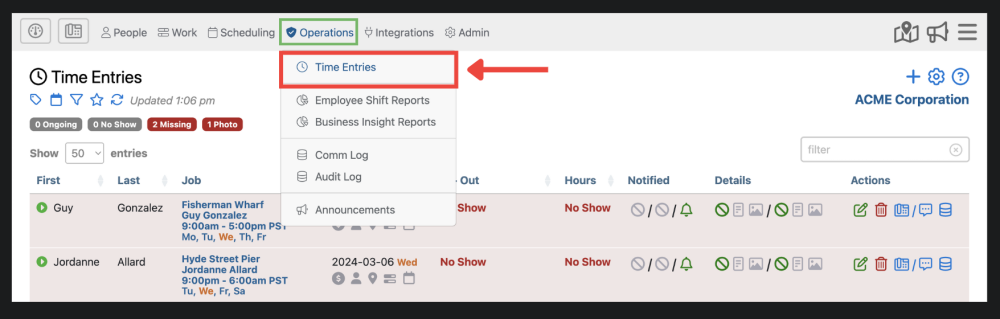
However, if you want to view your employee’s location for each clock in and out, navigate to the Time Entries section of the portal located under “Operations”.
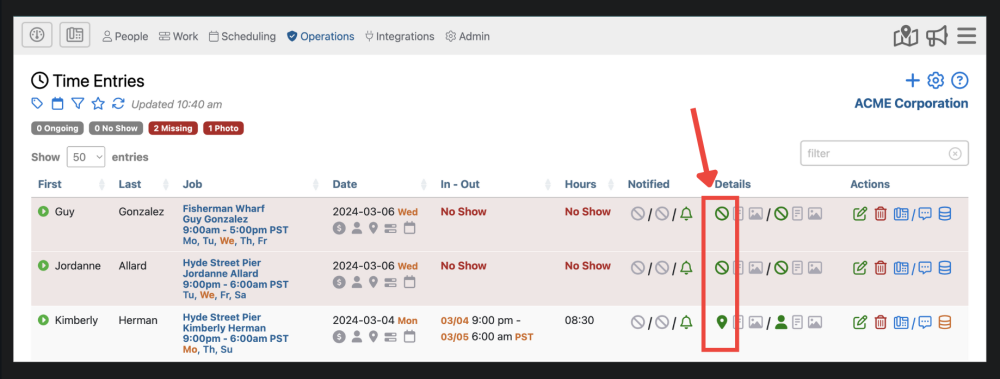
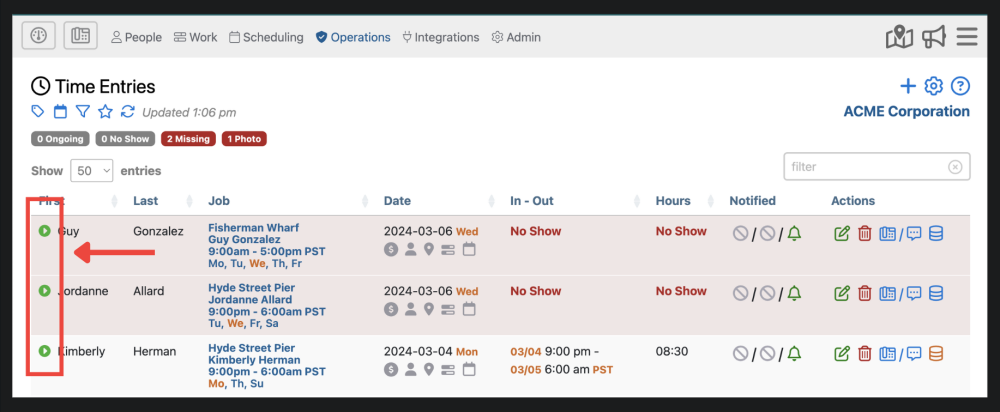
Ensure that the “details” view of your Time Entries is enabled by selecting the icon. Then scroll down until you see “details” and that it is checked.

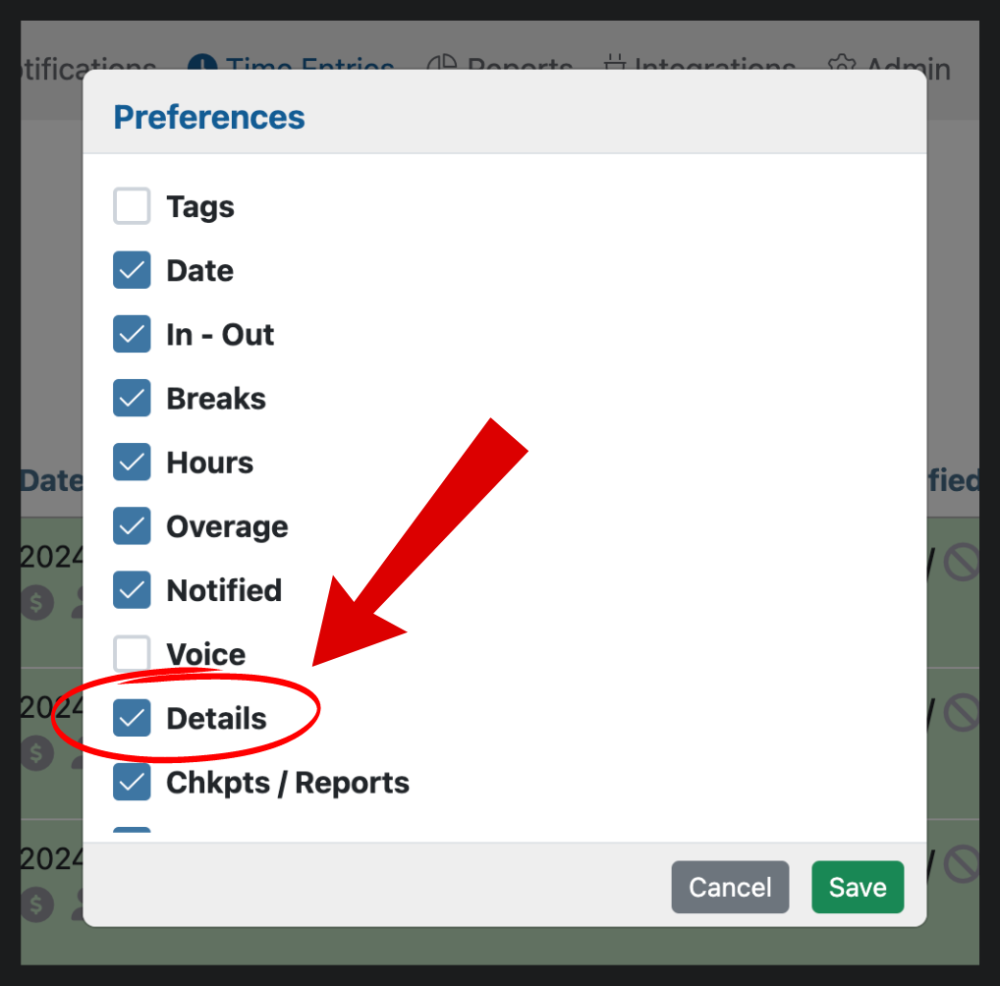
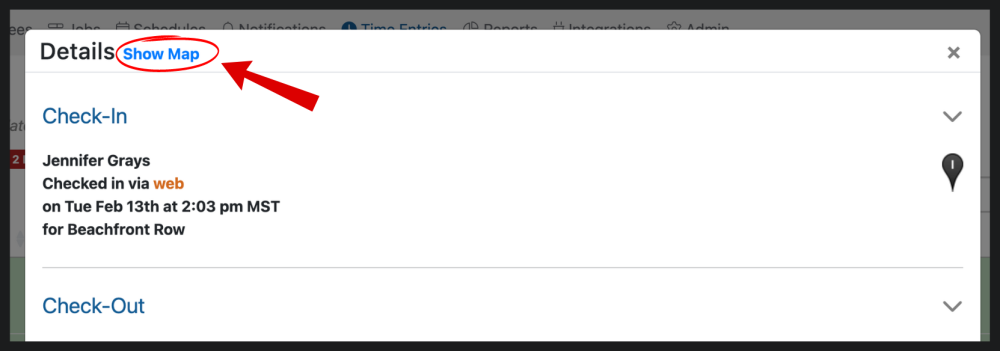
Once your “details” option is checked, click the icon to open up an array of options.

From there, select “show map” to view the employee’s whereabouts
Jobs Not Showing Up On Dashboard

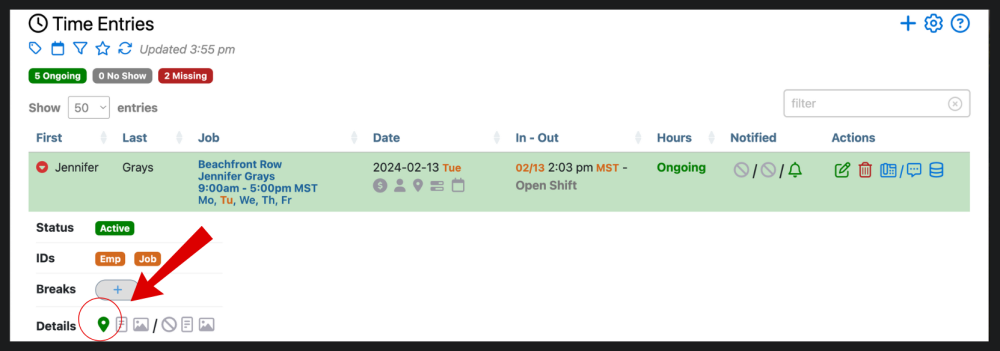
If the option the details option is checked but not showing up on the dashboard, it could be that your screen size is smaller than the average dimensions. To view employee GPS in this case, select this icon in the Time Entries tab.

Then, select the icon from the drop down.

From there, select “show map” to view employee location.

Proposed: GPS Tracking and Job Sites

Administrative Portal > People > Employees > GPS Location Tracking > GPS Tracking and Job Sites

If addresses are entered for the job, the system will calculate proximity to the job location and present that proximity information in the time entry.

However, if you want to view your employee’s location for each clock in and out, navigate to the Time Entries section of the portal located under “Operations”.

Ensure that the “details” view of your Time Entries is enabled by selecting the icon. Then scroll down until you see “details” and that it is checked.

Once your “details” option is checked, click the icon to open up an array of options.

From there, select “show map” to view the employee’s whereabouts

Jobs Not Showing Up On Dashboard

If the option the details option is checked but not showing up on the dashboard, it could be that your screen size is smaller than the average dimensions. To view employee GPS in this case, select this icon in the Time Entries tab.

Then, select the icon from the drop down.

From there, select “show map” to view employee location.