Current: Editing Supervisors
The Edit Supervisor form lets you update a supervisor's contact information, portal access, permission style, and notification preferences. These settings affect what the supervisor can do in the Administrative Portal and which real-time alerts they can receive while signed in.
Start from People > Supervisors. Find the supervisor you want to revise, then click the green pencil in the Actions column.
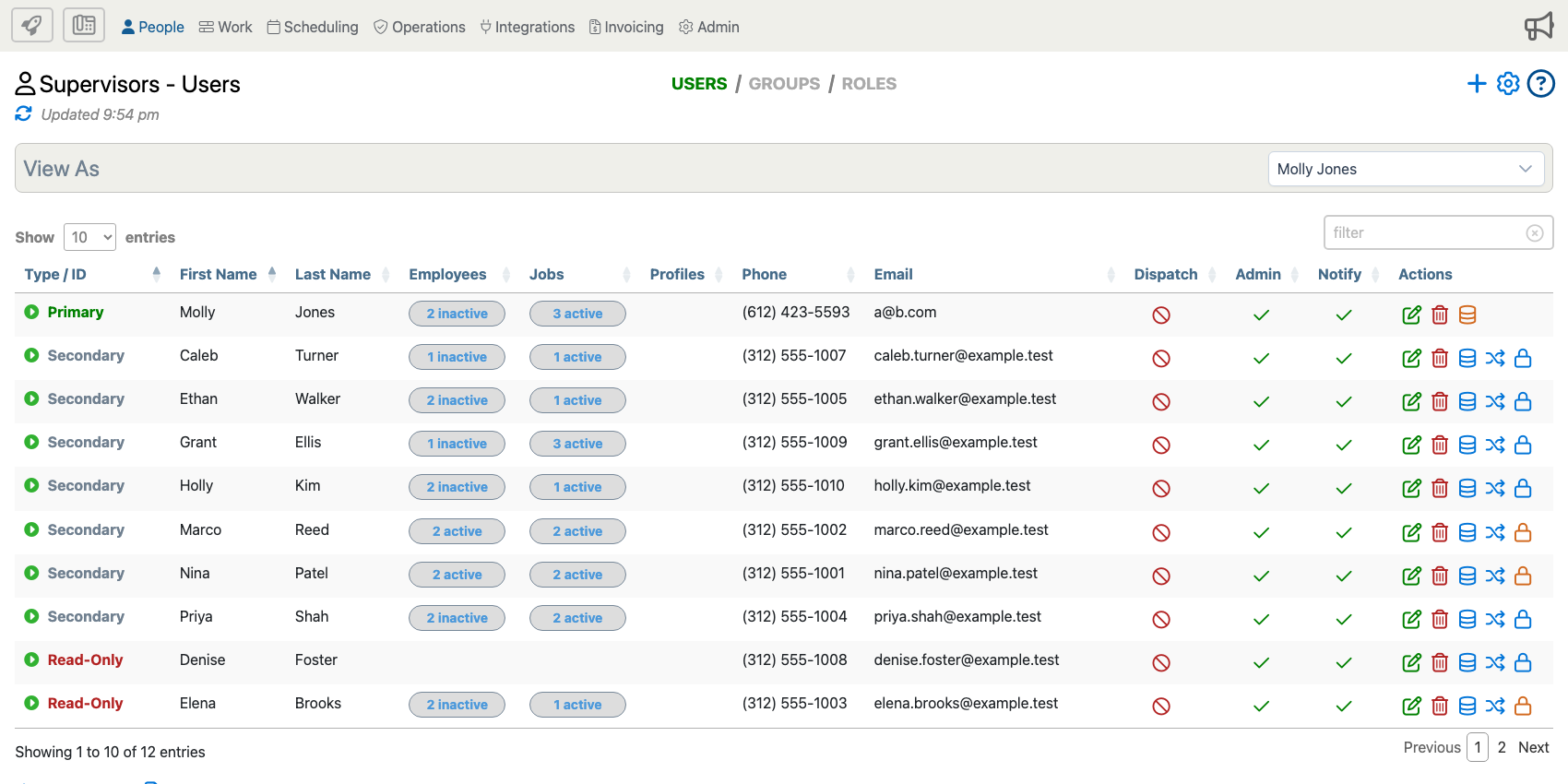
Once the edit form opens, review the full form below. The blue information icons jump to the matching explanation for the visible settings.
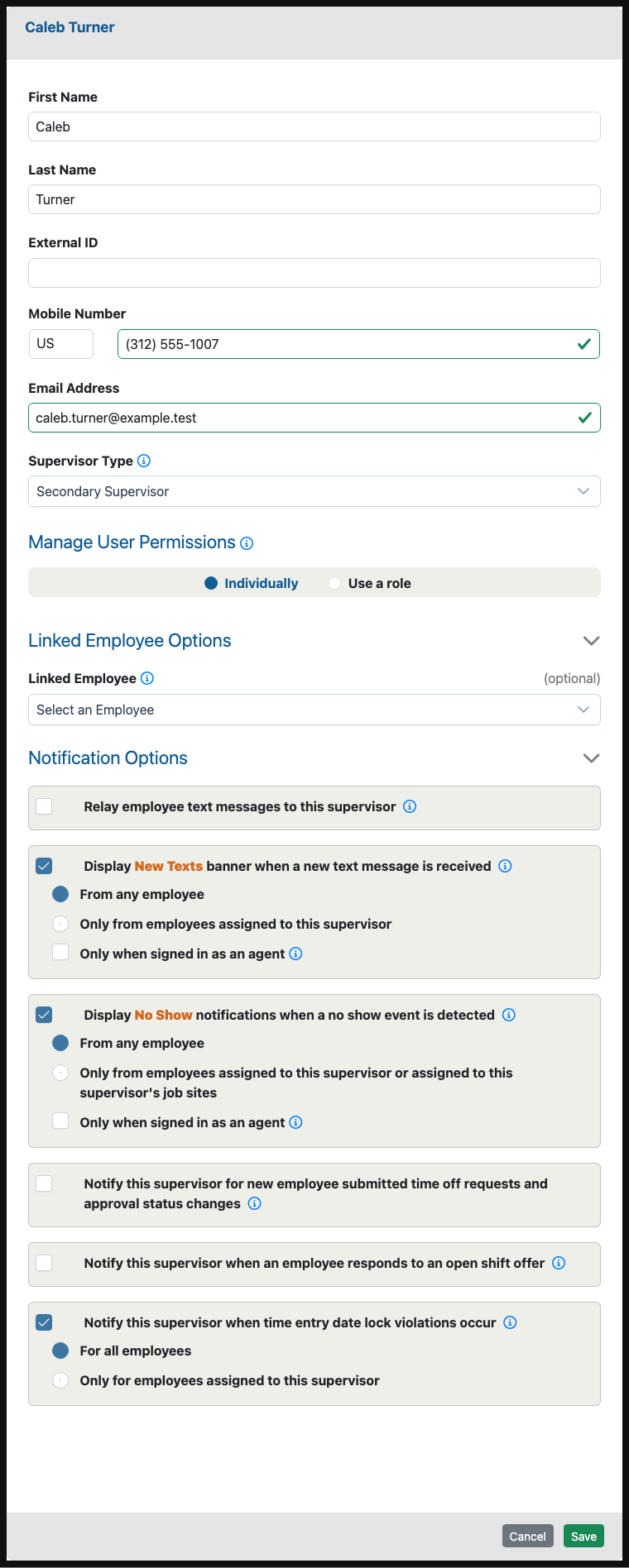
The options you see can vary by company setup, supervisor type, and enabled modules. If a setting is not shown for your company, it may not apply to your current configuration.
Option Descriptions
Supervisor Identity
First Name And Last Name
Use these fields to keep the supervisor's name current in portal lists, reports, permissions, and assignment views.
External ID
Use this field when the supervisor needs to match an identifier from another business system, import file, or integration.
Mobile Number
Keep the mobile number current because it can affect sign-in, communication, call-center workflows, and supervisor notifications.
Email Address
Use the email address for supervisor contact information and email-based notifications when those notifications are enabled.
Portal Access And Permissions
Supervisor Type
The supervisor type controls the broad access level for the user. Common types include Primary Supervisor, Secondary Supervisor, Managing Supervisor, Non-Admin Supervisor, and Read Only Supervisor.
Manage User Permissions
Choose Individually when you want to manage this supervisor's permissions directly from the Supervisors table. Choose Use a role when your company has predefined role templates and this supervisor should inherit one of those permission sets.
Linked Employee Options
Some companies link a supervisor record to an employee record. When this option is available, use it only when the supervisor also works as an employee and the two records should be connected.
Notification Options
Relay Employee Text Messages
Enable this when the supervisor should receive employee text-message activity through the relay notification workflow. The scope controls whether the supervisor receives messages from all employees they can access or only from employees assigned to them.
New Texts Banner
Enable Display New Texts banner when a new text message is received when the supervisor should see a portal banner for new text activity. Use the scope options to decide whether the banner applies to any accessible employee or only assigned employees.
Only When Signed In As An Agent
Use this option when the supervisor should receive the New Texts banner only while actively signed in as an agent. Leave it off when the banner should appear whenever the supervisor is using the Administrative Portal and the alert scope matches.
No Show Notifications
Enable Display No Show notifications when a no show event is detected when the supervisor should be alerted after Telephone Timesheets creates a no-show time entry. The alert can include a View No Show action that opens the related time entry for review.
The scope controls whether the supervisor sees no-show alerts for any employee they can access or only employees assigned to the supervisor or assigned to the supervisor's job sites.
Only When Signed In As An Agent For No Show Alerts
Use this when no-show alerts should appear only while the supervisor is actively signed in as an agent. Leave it off when the supervisor should receive matching no-show alerts while using the Administrative Portal normally.
Time Off Request Notifications
Enable this when the supervisor should be notified about employee-submitted time off requests and approval status changes. The scope can include all accessible employees or only assigned employees.
Open Shift Offer Notifications
Enable this when the supervisor should be notified after an employee responds to an open shift offer. This option appears only when open shift offer features are available for the company.
Date Lock Violation Notifications
Enable this when the supervisor should be notified when time entry date lock violations occur. This helps the supervisor notice edits or attempted edits that affect locked time periods.
Audio Alert Behavior
Alert Sounds
Supported portal alerts, including New Text and No Show alerts, can also play an alert sound when the browser allows sound playback. Treat the sound as an extra cue, not the only alert. Browser rules vary: some browsers allow sound after normal portal interaction, while others may require the user to manually allow sound for the site or may only play sounds while the portal is visible.
The visual banner or dialog remains the primary alert. If a supervisor depends on these alerts during busy periods, keep the Administrative Portal open and make sure browser sound is allowed for the site.
Saving Changes
Save
Click Save after reviewing the supervisor's contact details, access settings, and notification options. If you close the form without saving, your changes are not applied.