Change queue access

Enter password

Enter the password to open the change queue and review drafts.

V20260505.1901
Stage deploy healthy · Updated May 5, 3:01 PM

Viewing the current page. Start typing in the proposed side to make changes.

Current: Jobs

Administrative Portal > Work > Jobs

Jobs Overview

A Job is required for every schedule entry, and every time entry. A Job is typically a location where work is being done. For example, you might have a job called “The Franklin Building”. Sometimes there is more than one job at the same location. The only required information to create a job is the job name. However, there are many optional parameters that a job can contain. For example, GPS tracking requirements, photo requirements, break rules, pay rates, bill rates, and many more.

Jobs are not required; however, if your company’s jobs are stored in Telephone Timesheets, it makes the system far more powerful and impactful to your daily operations through AI-powered automation. For example, the system can provide automatic job profitability reporting.

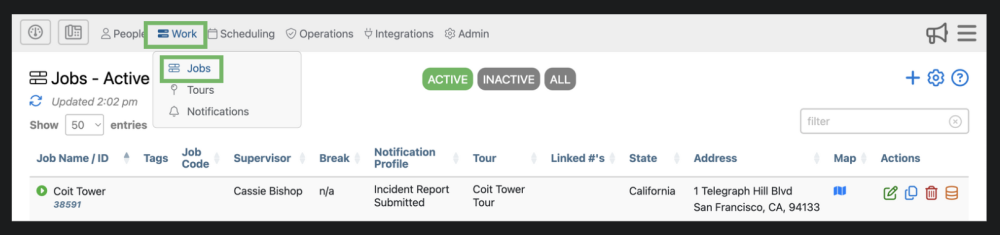
The jobs page can be accessed by selecting “Work” from the top menu and then “Jobs” from the drop down.

Highlights of The Jobs Page

The jobs page can be accessed by selecting “Work” from the top menu and then “jobs” from the drop down.
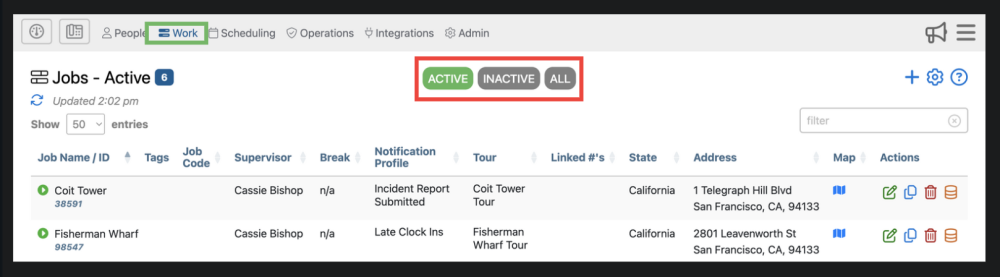
1. Jobs are organized into 3 different categories; Active, Inactive, All. You can filter jobs using these 3 tabs
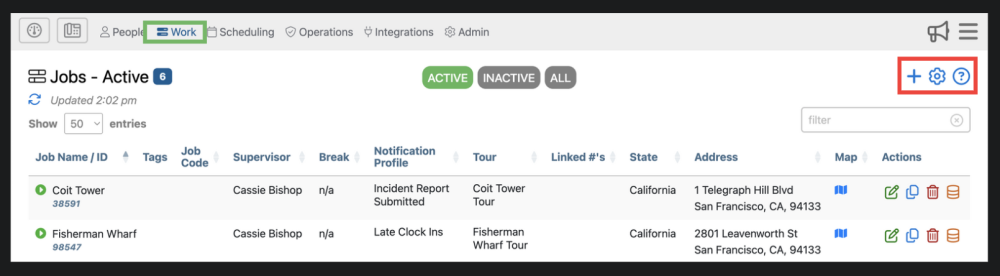
2. Here you can add a job , adjust settings , and find additional information about the jobs page .

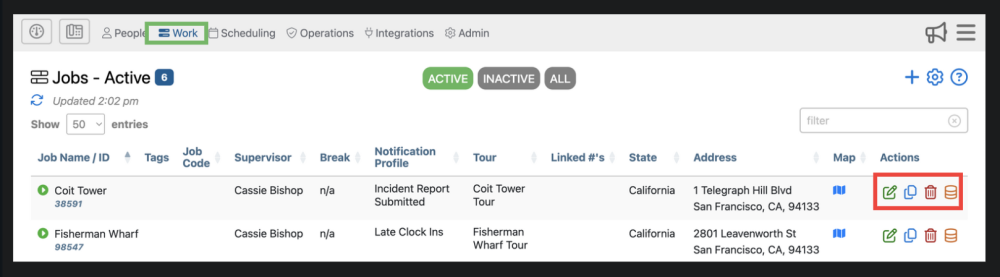
3. Here you can edit , delete Delete Button, copy jobs , and view audit history

4. Here, you can add a new job. This has the same function as the blue plus sign in the upper right corner. You can also download job records by clicking

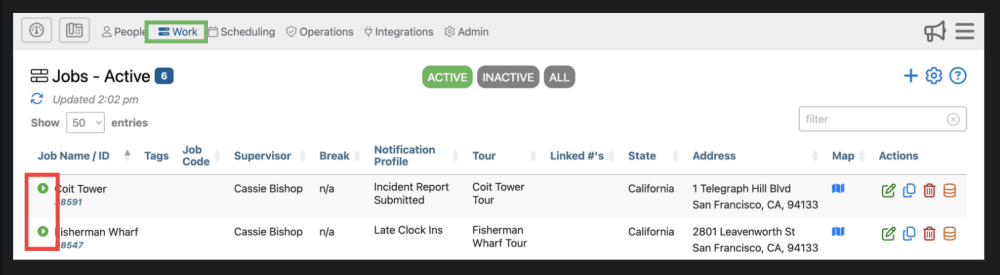
5. Here you can expand a job’s information by clicking the icon.

Proposed: Jobs

Administrative Portal > Work > Jobs

Jobs Overview

A Job is required for every schedule entry, and every time entry. A Job is typically a location where work is being done. For example, you might have a job called “The Franklin Building”. Sometimes there is more than one job at the same location. The only required information to create a job is the job name. However, there are many optional parameters that a job can contain. For example, GPS tracking requirements, photo requirements, break rules, pay rates, bill rates, and many more.

Jobs are not required; however, if your company’s jobs are stored in Telephone Timesheets, it makes the system far more powerful and impactful to your daily operations through AI-powered automation. For example, the system can provide automatic job profitability reporting.

The jobs page can be accessed by selecting “Work” from the top menu and then “Jobs” from the drop down.

Highlights of The Jobs Page

The jobs page can be accessed by selecting “Work” from the top menu and then “jobs” from the drop down.

1. Jobs are organized into 3 different categories; Active, Inactive, All. You can filter jobs using these 3 tabs

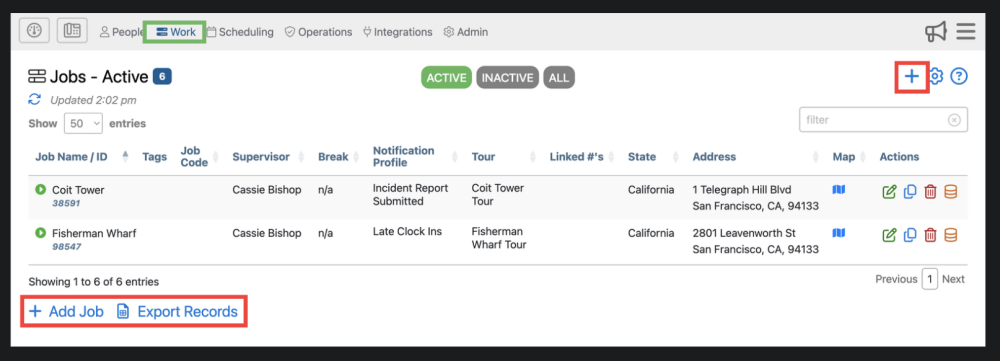
2. Here you can add a job , adjust settings , and find additional information about the jobs page .

3. Here you can edit , delete Delete Button, copy jobs , and view audit history

4. Here, you can add a new job. This has the same function as the blue plus sign in the upper right corner. You can also download job records by clicking
5. Here you can expand a job’s information by clicking the icon.