Current: On-Site Worker Requests
This topic has not been published in the manual yet.
Approve the draft on the right to add On-Site Worker Requests as a new manual page.
This topic has not been published in the manual yet.
Approve the draft on the right to add On-Site Worker Requests as a new manual page.
On-site worker requests let someone scan an Action Point QR code and request help from a worker who is currently on site for a specific job. This workflow is for situations where the requester needs a person to respond, not only a ticket to be reviewed later.
Security companies can use this for guard requests at lobbies, loading docks, parking garages, tenant entrances, or front desks. Janitorial companies can use it when a building occupant needs an available cleaner at the property. Other service teams can use it when the request should look for a configured worker type already clocked in at the linked job.
In the Add or Edit Action Point form, choose On-Site Worker Request in the Type field. The form then requires a worker type and a linked job.
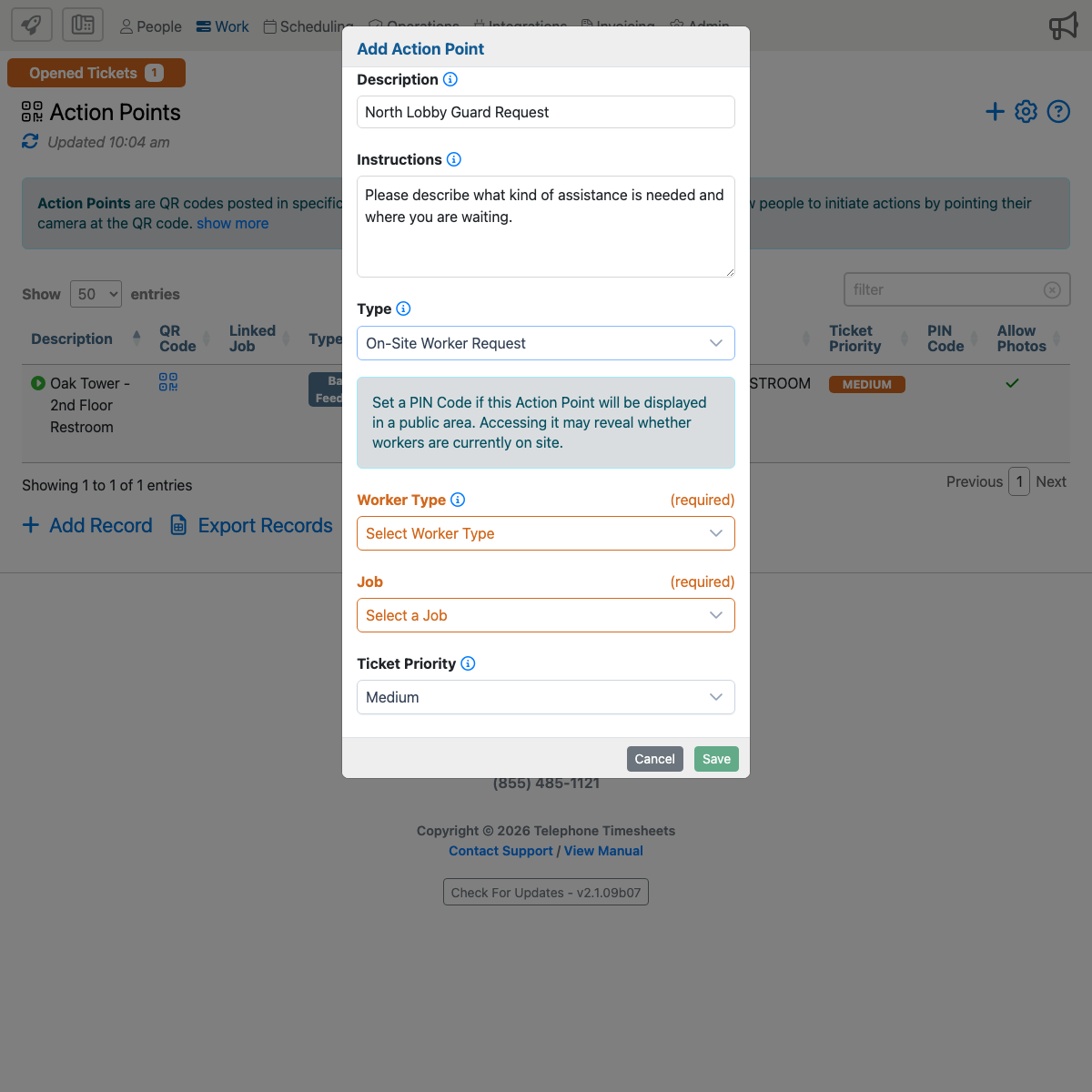
Select On-Site Worker Request. The Action Point will use the worker request workflow instead of the standard Basic Feedback form.
Set a PIN when the QR code will be displayed in a public area. The form warns that accessing the request may reveal whether workers are currently on site. A PIN helps limit this information to people who should be able to request help.
Choose the worker category that should respond, such as guard, janitor, cleaner, maintenance worker, or another configured worker type. The available choices depend on your company setup.
Choose the job where eligible workers clock in. This is the most important setup field for on-site worker requests. If workers are on site but clocked in under a different job, the request may not find them.
Tell the requester what kind of help this QR code requests and what details to include. Good instructions mention the location details your worker will need, such as entrance, floor, suite, lobby desk, loading dock, parking level, or nearby landmark.
The requester should not need to understand jobs, worker types, or internal ticket routing. The printed sign and form instructions should explain the practical action, such as Scan to request guard assistance at this entrance or Scan to request janitorial help for this area.
If an eligible worker is currently on site for the linked job and worker type, the request can continue. The worker request should give admins enough information to understand who was requested, where help was needed, and what happened next.
If no eligible worker is clocked in under the linked job, the requester should not complete a request that appears to dispatch someone. Check the linked job, worker type, employee clock-in status, and whether the expected workers use the same job when clocking in.
If workers are contacted but decline, do not respond, respond too late, or cannot be reached, admins should use the Trouble Ticket or request history to decide whether manual dispatch is needed.
If requests are not finding workers who are actually on site, first confirm the Action Point job and worker type. Most setup problems come from the QR code checking one job while workers are clocked in under another.
Admins should review on-site worker requests from the resulting Trouble Ticket or request record. The important details are the Action Point origin, linked job, worker type, requester details, current status, contacted workers, accepted worker if any, decline or timeout information, and notes.
On-site worker requests can reveal operational information, such as whether workers are currently available at a location. Use a PIN for public signs and write the printed sign so only the intended audience knows when to use it.
Do not post an unrestricted worker request QR code in a fully public area unless your company is comfortable with anyone at that location checking availability or requesting assistance.