The Edit Schedule form uses the same overall layout as Add Schedule, but it lets you revise an existing recurring or one-time shift that may already be tied to future coverage, notifications, and time-entry tracking.
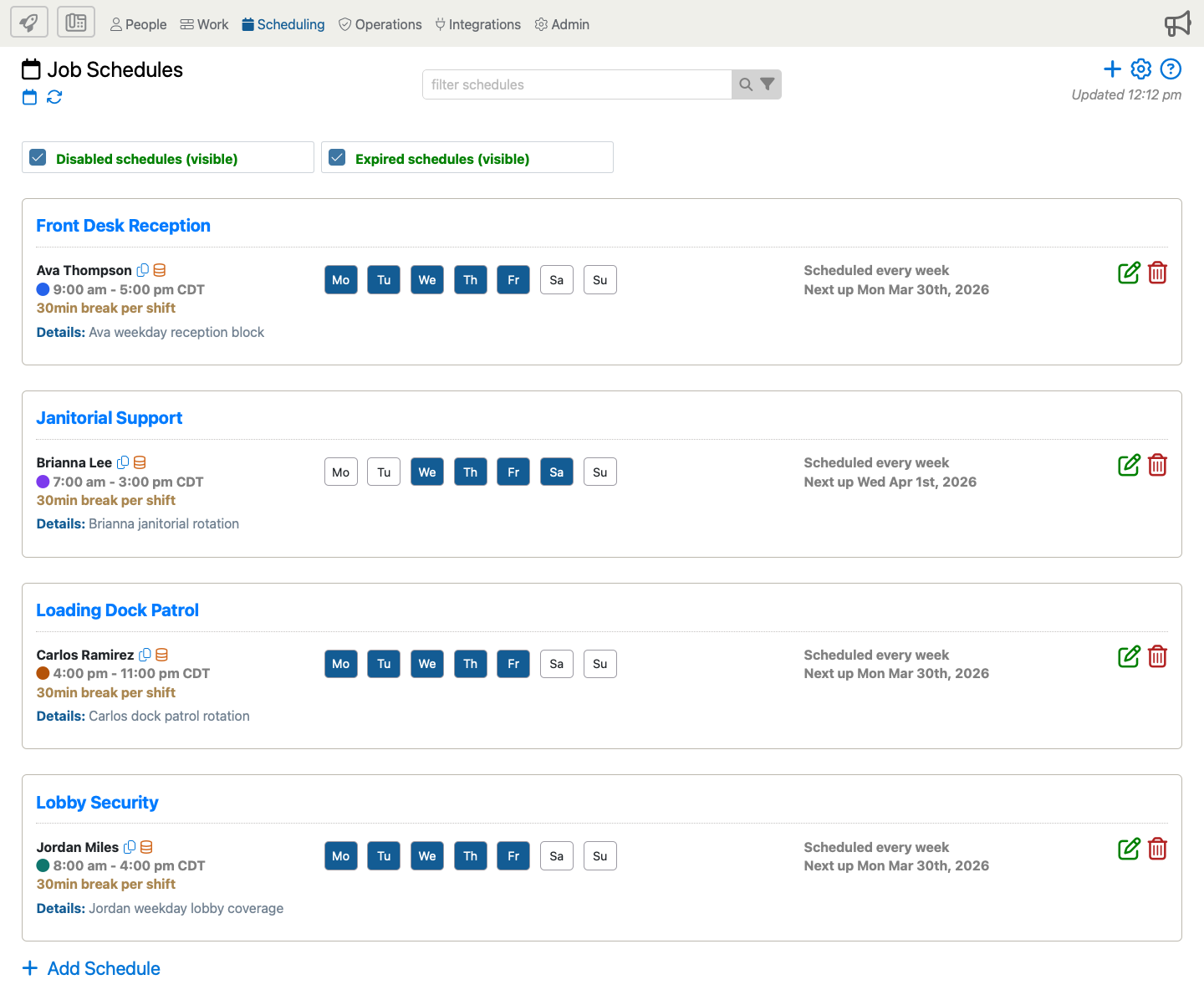
Start from Scheduling > Job Schedules. To revise a schedule, find it in the list and click the green pencil in the right-side action column.
Once the edit form opens, use the composite below to review the full live form, then tap a blue i marker to jump to the matching explanation.
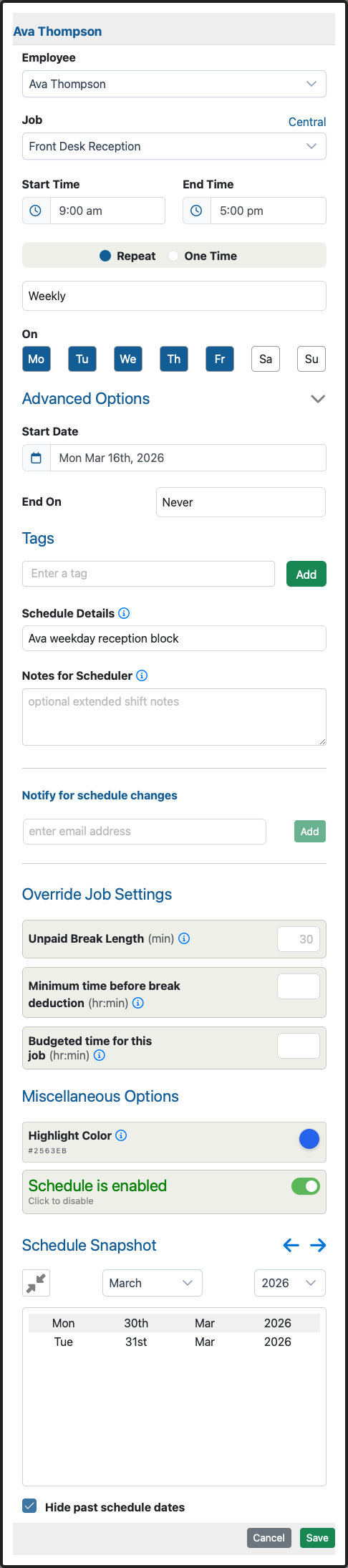
The form shown below includes many of the schedule options your company may use. Depending on how your company is set up, you may also see any-employee scheduling, pending approval, work orders, automatic check in and check out, paid holidays, time-overage controls, budget adjustment rules, or schedule-level budget overrides.
Option Descriptions
Who And What You Are Updating
Employee
Use this field when the schedule should belong to a different employee. Changing the employee affects who is expected to work the shift going forward.
Job
Change the job only when the schedule should now belong to a different work assignment. This affects where the employee is expected to work and which job-level defaults the schedule can inherit.
Schedule Type, Any Employee, And Multi-Employee Scheduling
Some companies can move a schedule between one named employee, multiple named employees, or a flexible Any Employee count. Make that change only when the staffing model for the schedule has truly changed.
Shift Timing And Recurrence
Start Time And End Time
Update the start and end time when the shift hours have changed. For recurring schedules, this updates the time pattern for future occurrences.
Repeat Or One Time
Use Repeat for a continuing pattern and One Time for a single dated shift. Switching between them changes how future occurrences are generated.
Schedule Date
When the schedule is changed to One Time, the form shows a single Schedule Date field instead of the recurring pattern controls.
Frequency
Update the frequency when the schedule should repeat on a different cadence, such as weekly instead of monthly.
On
Change the selected day buttons when the recurring shift should move to different weekdays.
Start Date
The start date controls when the current recurring pattern begins. Update it when the timing of the schedule should restart or shift forward.
End On
Use Never to keep the schedule open-ended. Use End Date or Count Reached when the edited schedule should stop after a known point.
Shift Notes And Communication
Tags
Add or remove tags when office staff need to search or group the schedule differently.
Schedule Details
Use this field to update the short description that helps office staff recognize the shift and, in some accounts, helps employees identify it during check-in.
Notes For Scheduler
Use this internal notes area for scheduler-only information that employees should not see.
Notify For Schedule Changes
Use the email list when supervisors, coordinators, or clients should receive a notice whenever this schedule is changed.
Work Orders
Some accounts also show a work-order option. Use it only when your scheduling process depends on sending emailed work orders for the schedule.
Override Job Settings
Several schedule fields can override the job's normal defaults. Use schedule overrides only when this shift pattern should behave differently from the job it belongs to.
Unpaid Break Length
Update this when the schedule should use a different unpaid break length than the usual job default.
Minimum Time Before Break Deduction
Use this field when the break should apply only after the employee has worked a minimum amount of time. Leave it blank when the break should always apply.
Apply This Unpaid Break Repeatedly
When this option is available, the schedule can control whether the automatic unpaid break is deducted once or repeatedly as the minimum-time threshold is reached again during a longer shift. A schedule can inherit the job rule or override it for this shift pattern.
Budgeted Time For This Job
Update this when the expected labor budget for the schedule has changed. This helps budget and overage reporting reflect the revised expectation.
Budget Adjustment Rule
When the schedule shows a Budget Adjustment Rule, that schedule-level rule overrides the job-level budget adjustment rule for this shift pattern. Use it when the schedule should be adjusted differently from the broader job.
Ignore Unpaid Breaks For Budget Adjustments
When this override is available, choose Use Job Setting to inherit the job-level setting, Enabled to ignore automatically deducted unpaid breaks for this schedule's budget adjustment calculation, or Disabled to include those unpaid break deductions in the calculation.
This schedule option affects budget adjustment calculations only. It does not change whether the break is deducted, whether employees can take breaks, or how break activity appears in time entries and reports.
Time Overage
Some companies also expose a time-overage setting. When available, it is used to track when the actual worked time runs longer than the scheduled expectation.
Miscellaneous Options
Highlight Color
Use this when your team color-codes schedules in the scheduler view and the current schedule should stand out differently.
Schedule Is Enabled
Turn this off when the schedule should remain saved but stop generating or participating in normal future schedule activity.
Schedule Snapshot
Use the snapshot to confirm that the edited recurrence pattern still produces the correct future dates before you save.
Hide Past Schedule Dates
This keeps the preview focused on upcoming dates when older occurrences are no longer helpful during review.
Pending And Approved Schedule Status
Some companies can mark an edited schedule as Pending or later return it to Approved. Use that workflow only when your team intentionally stages schedule changes before they become active.
Auto Check In / Out
Some companies can let the system automatically create the time entry for the schedule. Change this only when the schedule should switch between employee-managed time capture and system-managed time capture.
Paid Holiday
When paid holidays are enabled, the schedule can also be turned into an automatically created paid-holiday entry instead of a normal employee check-in schedule.
Save The Schedule Update
- Review the employee, job, and timing fields first so the schedule still belongs to the right person and assignment.
- Change override settings only when the schedule truly needs to differ from the normal job defaults.
- Use Use Job Setting for nullable schedule overrides when the schedule should keep following the job-level rule.
- Check the schedule snapshot before saving so the edited recurrence pattern still matches what you intend.