The Edit Client form is where you update an existing client’s contact information, address details, billing information, linked contacts, and active status.
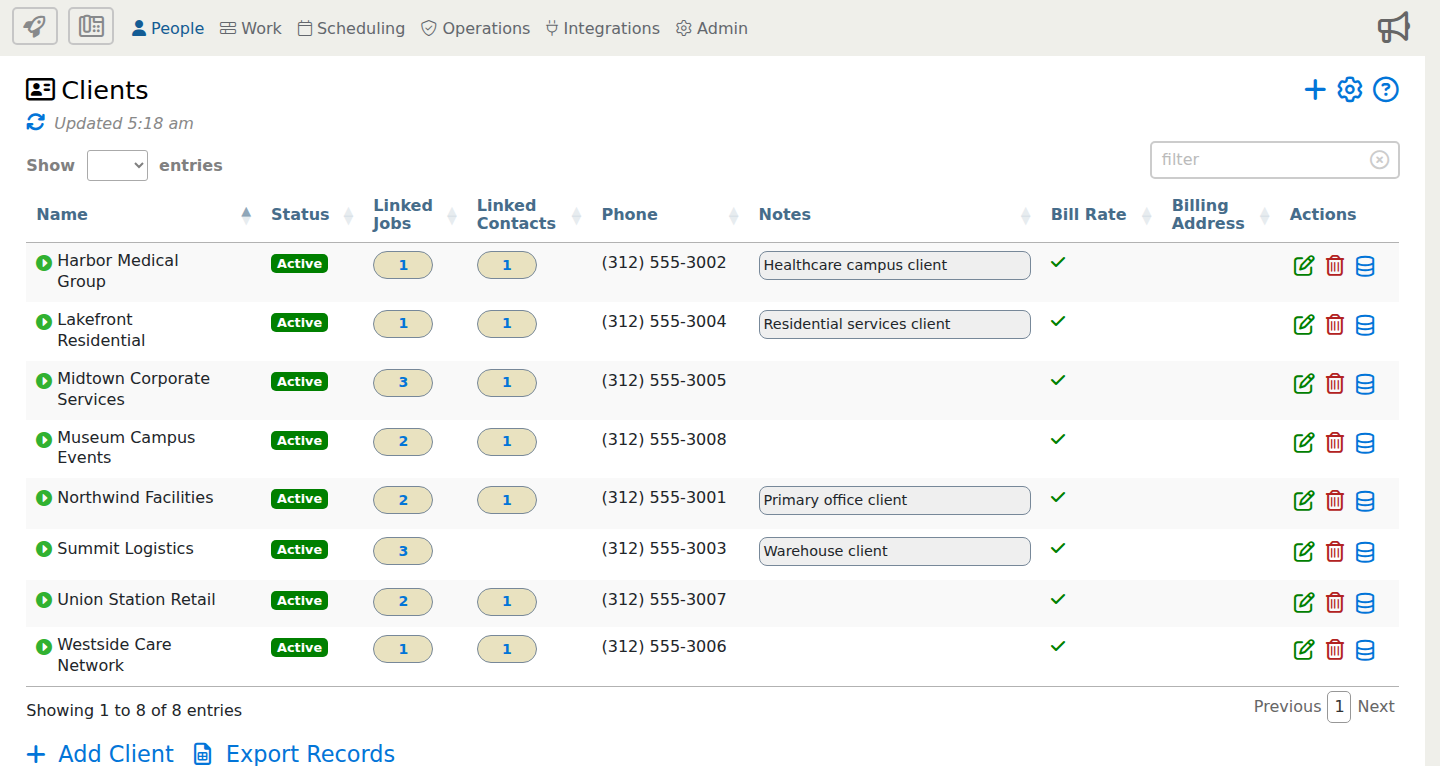
Start from People > Clients. To edit a client, find the client in the list and click the green edit icon in that row’s Actions column.
When the Edit Client form opens, review the full form below. Use the blue i markers to jump to details about specific options.
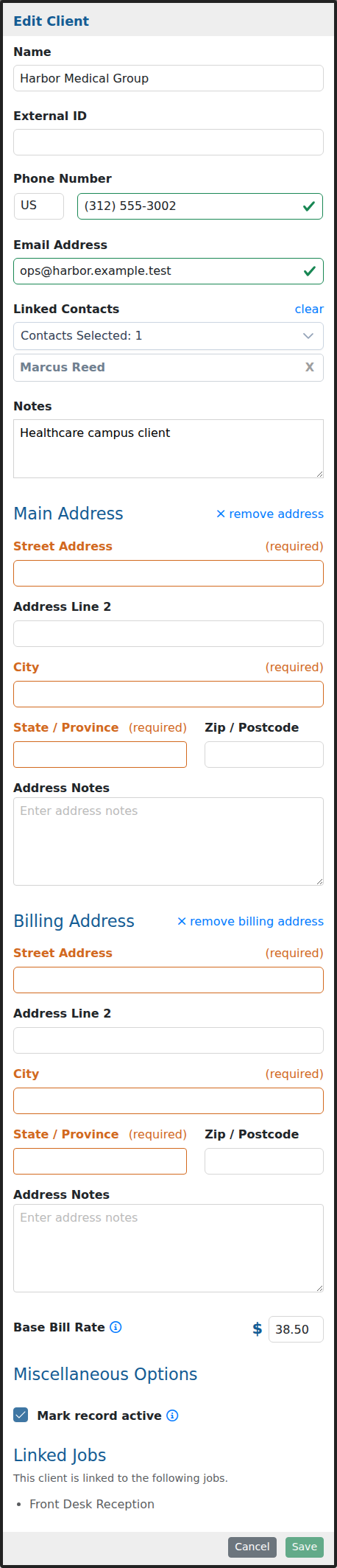
This example shows the full Edit Client form. Some fields may appear only when your company uses related features such as client billing rates, address tracking, contact linking, or invoicing.
Option Descriptions
Client Information
Name
Enter the client name exactly as you want it to appear in lists, reports, job assignments, and related client records.
External ID
Use this field when the client needs to match an identifier from accounting, payroll, importing, or another outside system.
Phone Number
Store the client phone number here when supervisors need to call or text the client from Telephone Timesheets.
Email Address
Store the client email address here when client communication, reporting, or office follow-up should reference the client record.
Linked Contacts
Choose the individual contacts that belong to this client. If a selected contact is already linked to another client or vendor, the form warns you before that contact is reassigned.
Notes
Add internal client notes that help your office team recognize the account, preferred instructions, or other client-specific details.
Addresses
Main Address
Use the main address for the client location or mailing address that should appear with the primary client record.
Address Line 2
Use this optional line for a suite, unit, building, floor, or other secondary address detail.
Address Notes
Use address notes for delivery instructions, office suite details, entrance notes, or other address-specific reminders.
Billing Address
Use a separate billing address when invoices, billing reports, or back-office records should use a different address than the main client address.
Billing And Status
Base Bill Rate
This rate is used to calculate the client bill amount when no job-specific client bill rate is defined for the client.
Mark record active
Keep this selected when the client is currently active. Inactive records can be hidden or shown depending on the table preferences used on the Clients page.
Linked Jobs
When a client is already connected to one or more jobs, the edit form lists those linked jobs so you can see where the client record is currently being used.
After saving the client, the updated client information is available to jobs, reports, invoicing, and related client contact records.