The Dashboard Preferences window is where you rename a dashboard, decide who owns it, and choose which supervisors can view it.
Start from the Rocket Menu and open Analytics Dashboards. If your company has more than one dashboard, use the dashboard name drop-down to select the dashboard you want to update, then click the dashboard preferences gear  in the dashboard controls.
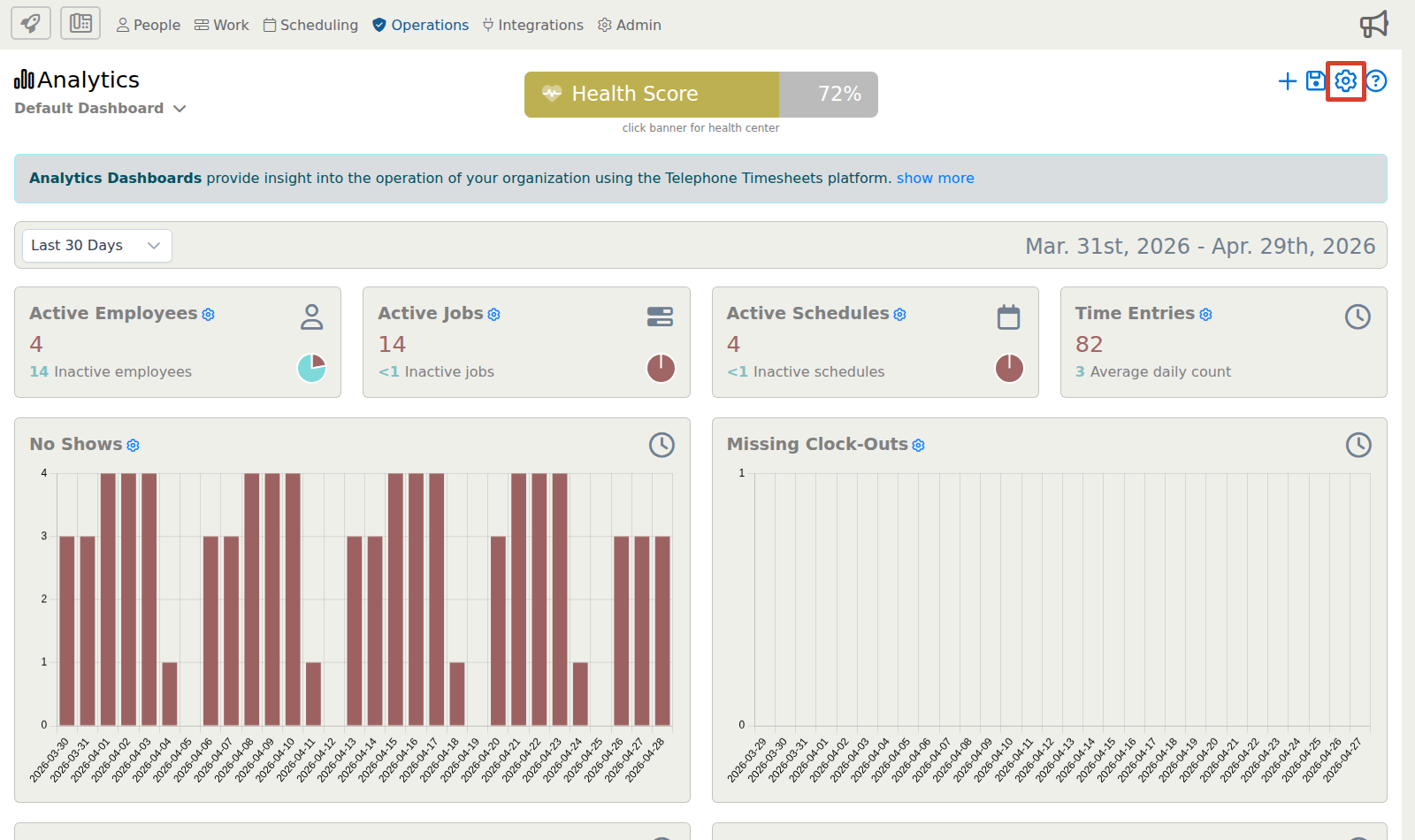
When Dashboard Preferences opens, use the form to update the dashboard name, ownership, and sharing rules.
What You Can Change
Dashboard Name
This controls the name shown in the dashboard selector. Change this field when the dashboard should be renamed for a department, location, role, or reporting purpose.
Dashboard Owner
This controls who can make changes to the dashboard. The dashboard creator and the selected owner have full edit permissions. Supervisors who are only shared on the dashboard can view it, but they cannot change its setup.
Created by
This shows who originally created the dashboard. It is informational and cannot be edited from the preferences window.
Saving Dashboard Preference Changes
After updating the dashboard name, owner, or sharing options, click Save. The dashboard selector and sharing permissions update after the change is saved.
If you are viewing a dashboard owned by another supervisor, you may not be allowed to save changes to that dashboard. In that case, clone the dashboard first, then edit your own copy.
How This Differs From Saving Dashboard Layout Changes
Dashboard preferences control the dashboard record itself, such as the name, owner, and sharing rules. Dashboard layout changes, such as adding rows, cards, graphs, or data sources, are saved from the dashboard save menu.
If you change cards or data sources, use the save icon in the dashboard controls and choose Save so the dashboard layout is preserved.