Change queue access

Enter password

Enter the password to open the change queue and review drafts.

V20260505.1901
Stage deploy healthy ยท Updated May 5, 3:01 PM

Viewing the current page. Start typing in the proposed side to make changes.

Current: Running Reports

Administrative Portal > Operations > Business Insight Reports > Running Reports

Reports that have a frequency of daily, weekly, bi-weekly, twice per month, or monthly, can be run automatically. These reports will run the day after the end date of the report. For daily reports, automatic run occurs the following day at 7:00AM Central Time (USA). For all other frequencies, automatic reports run at Noon Central Time, the day after the last day of the report period. For example, a weekly payroll report that covers the period from Monday through Sunday, will run each Monday at Noon Central Time.

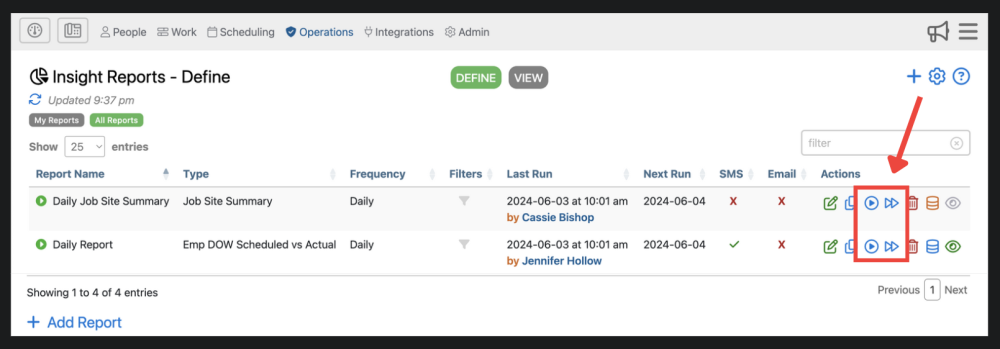
For reports that are set to run manually, or to re-run a past report, you will have to click on the blue Run button in the Action column of that Report.

To run current report period-to-date, click in the action column of that report

Proposed: Running Reports

Administrative Portal > Operations > Business Insight Reports > Running Reports

Reports that have a frequency of daily, weekly, bi-weekly, twice per month, or monthly, can be run automatically. These reports will run the day after the end date of the report. For daily reports, automatic run occurs the following day at 7:00AM Central Time (USA). For all other frequencies, automatic reports run at Noon Central Time, the day after the last day of the report period. For example, a weekly payroll report that covers the period from Monday through Sunday, will run each Monday at Noon Central Time.

For reports that are set to run manually, or to re-run a past report, you will have to click on the blue Run button in the Action column of that Report.

To run current report period-to-date, click in the action column of that report