Current: Employee Scoring
Employee Scoring controls how much each tracked lateness and GPS behavior affects the employee score. Scores are recalculated from the employee's most recent 30 days of activity, and this window distributes 100 total points across the five scoring categories.
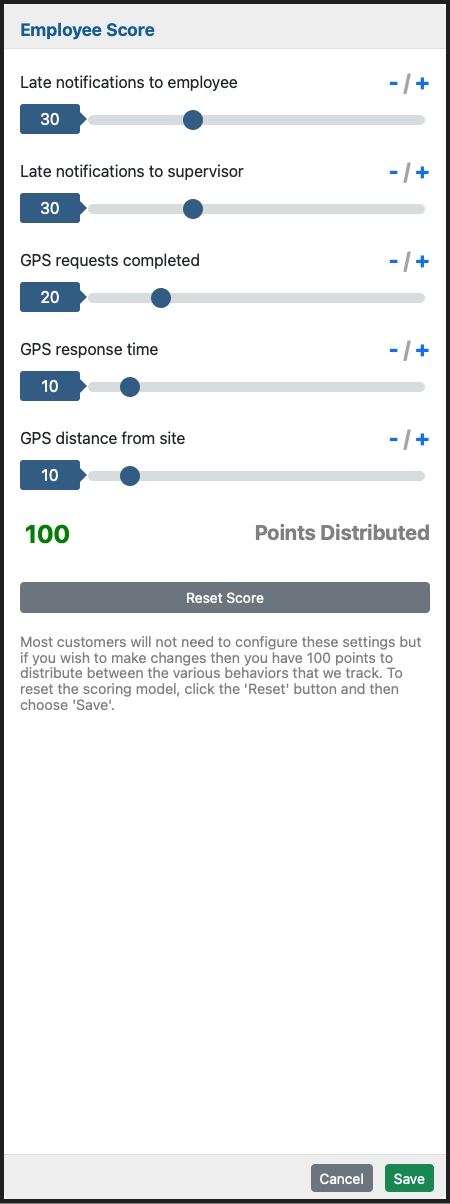
Most companies leave the default scoring weights in place. Update this window only if you want lateness, GPS completion, GPS response speed, or GPS distance from the job site to carry more or less weight in the score model.
If the saved scoring model is missing a category or the weights no longer total 100, the dialog shows a warning banner at the top asking you to review the settings and save again.
Option Descriptions
Scoring Categories
Late notifications to employee
Sets how strongly the score is affected when the system has to notify an employee that they are late. Increasing this value puts more weight on employee-lateness notifications in the final score.
Late notifications to supervisor
Sets how strongly the score is affected when the system has to notify a supervisor that an employee is late. Use this when supervisor alerts should carry more or less weight than employee alerts.
GPS requests completed
Sets how much credit employees receive for completing GPS requests at all. Raising this value makes successful GPS participation more important in the score.
GPS response time
Sets how much the score is affected by how quickly employees respond to GPS requests. Higher values make late GPS responses count more heavily against the score.
GPS distance from site
Sets how much the score is affected by whether the shared GPS location is close to the expected job site. Increase this value when job-site proximity should matter more in the model.
Adjusting The Weights
Point value and slider
Each row shows the current point value and a slider for that category. Dragging the slider changes how many of the 100 total points are assigned to that behavior.
Plus and minus controls
Use the - and + controls to lower or raise a category one point at a time when you want a more precise adjustment than dragging the slider.
Points Distributed
This total must equal 100 before the scoring model can be saved. When the total is below or above 100, adjust the category weights until the total returns to 100.
Action Buttons And Notes
Reset Score
Returns the scoring model to the default weight distribution. This is the fastest way to recover if testing leaves the score model unbalanced or no longer useful.
Save
Saves the company's employee scoring configuration. The Save button stays disabled until the five category values add up to exactly 100.
Cancel
Closes the dialog without saving your changes.
Scoring note
The note at the bottom explains that most customers do not need to adjust these settings often. Use this screen when you want to emphasize certain attendance or GPS behaviors more heavily than the default model does.