Current: Holidays
Holidays
Use Holidays to manage the holiday calendars your company uses for holiday-aware reporting, payroll review, billing rules, invoicing, and customer-specific holiday handling. A holiday profile is a named list of holidays. Your company can use a standard system profile, or you can create custom profiles for contracts, regions, or customers with different holiday rules.
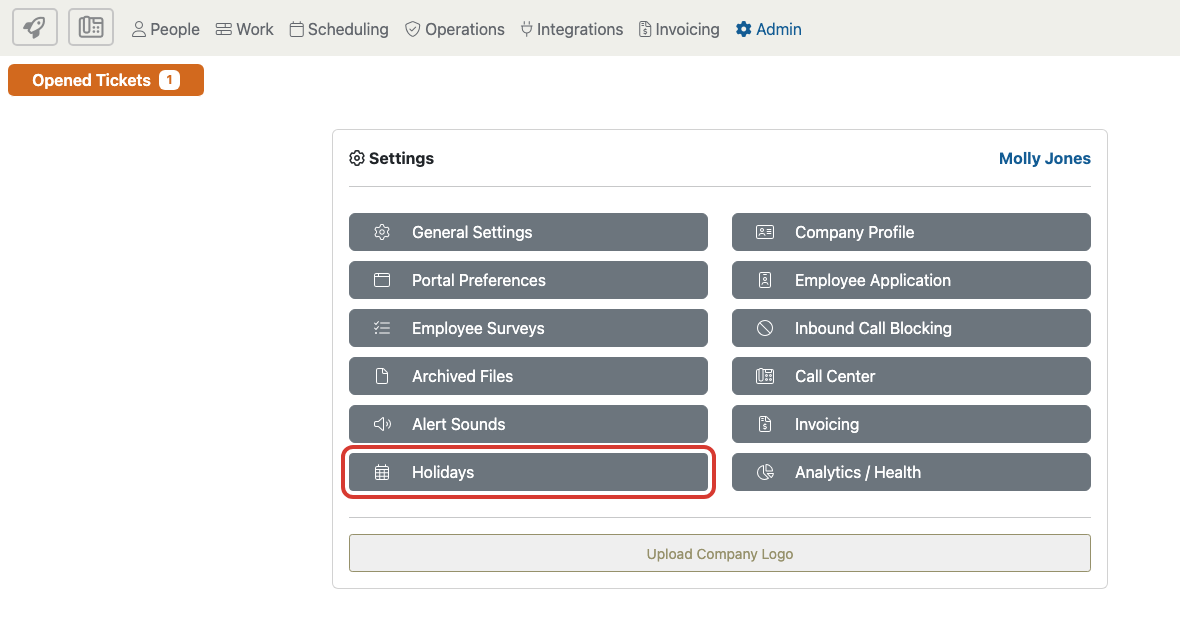
Open Admin, choose Settings, then select Holidays.
Before You Start
Holiday profiles affect how holiday dates are recognized elsewhere in Telephone Timesheets. Before changing them, decide which calendar your company should use by default and whether any customers or contracts need their own holiday list.
- Company default: Choose the profile that should apply when no customer or organization override is selected.
- Customer differences: Create a custom profile when a client contract, region, province, state, or billing agreement follows a different holiday list.
- Observed date or actual date: Decide whether a holiday should follow its observed business day or only the actual calendar date.
- Downstream use: Review payroll exports, holiday reports, holiday-hours invoice rules, and customer records that depend on holiday classification before changing an active profile.
- Naming: Use names that explain the business purpose, such as US Federal Holidays, Canada BC Statutory Holidays, or Client Billing Holidays.
What The Holidays Page Shows
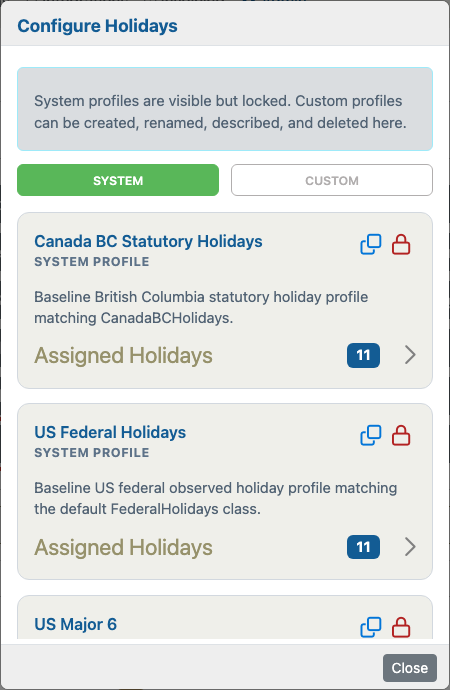
The Configure Holidays window has two profile groups: System and Custom.
System Profiles
System profiles are maintained by Telephone Timesheets. They are visible so you can review their assigned holidays, but they are locked and cannot be edited or deleted. Use them when your company can follow a standard calendar such as a U.S. federal or regional statutory holiday list.
System profile cards can show two controls:
- Clone Profile: Copies the system profile into a custom profile that your company can adjust.
- System Profile: Indicates that the profile is locked.
Custom Profiles
Custom profiles belong to your company. Use them when the standard system profiles do not match a contract or operating requirement.
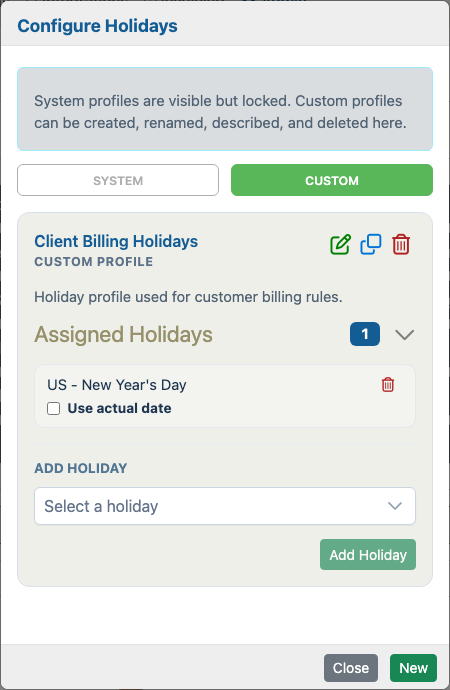
Custom profile cards can show these controls:
- Edit Profile: Changes the custom profile name or description.
- Clone Profile: Copies an existing profile so you can start from a known holiday list.
- Delete Profile: Removes a custom profile after you confirm the deletion.
Review Assigned Holidays
Each profile card includes an Assigned Holidays section. The number badge shows how many holidays are assigned to that profile. Open the section to review the holiday names.
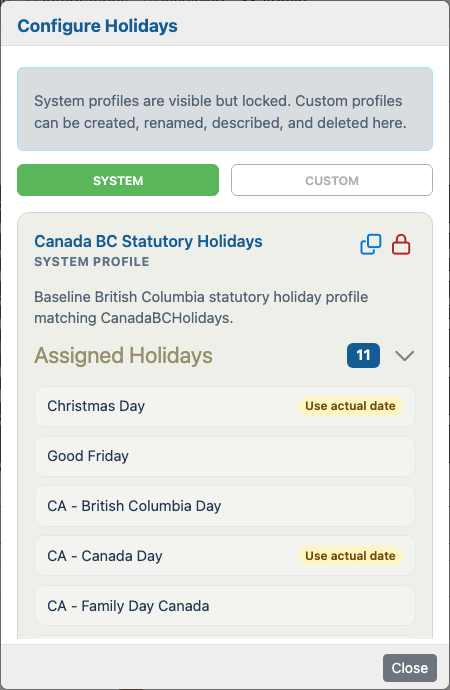
Some assigned holidays show a Use actual date label or checkbox. This controls whether the holiday should be recognized only on the real calendar date instead of an observed date. For example, if a holiday falls on a weekend, an observed-date rule may treat a nearby weekday as the holiday, while Use actual date keeps the holiday tied to the actual calendar date. Some holidays require actual-date behavior and cannot be changed.
Create A Custom Holiday Profile
Use a custom profile when you need a holiday list that differs from a system profile. For many companies, the quickest workflow is to clone a close system profile, rename it, then add or remove holidays until it matches the contract or region.
To create a blank custom profile, open the Custom tab and select New.
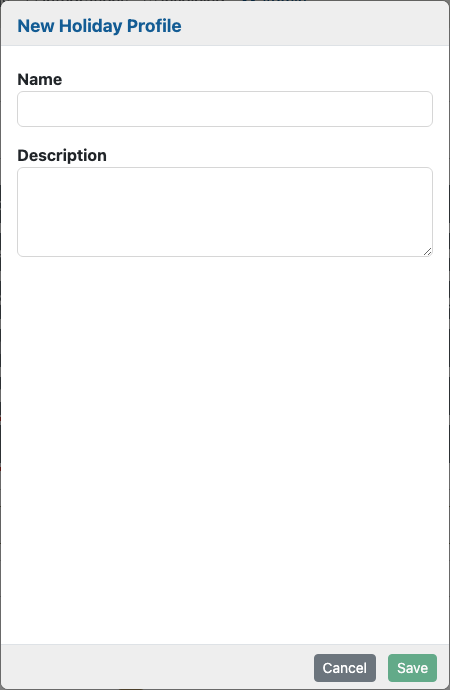
Name
Enter a clear profile name. The name appears in profile selectors elsewhere in Telephone Timesheets, so it should tell admins when to use it. Examples include Client Billing Holidays, US Federal Holidays - Actual Date, or BC Security Contracts.
Description
Use the description to explain the reason for the profile. Good descriptions mention the contract, region, customer group, or policy the profile supports. This helps future admins understand why the profile exists before they change it.
Save
Select Save to create the custom profile. Holiday profile names must be unique. If a profile with the same name already exists, choose a more specific name.
Add Or Remove Holidays
Open a custom profile's Assigned Holidays section to maintain the holiday list.
- Select a holiday from the Select a holiday list.
- Review the holiday description if one appears below the selector.
- Choose Use actual date when the holiday should only apply on the actual calendar date.
- Select Add Holiday.
- Use the delete control beside an assigned holiday to remove it from the profile.
The selector only shows holidays that are not already assigned to the profile. If every available holiday has already been added, the page tells you that all available holidays are assigned.
Set The Default Profile
After the holiday profile exists, choose the company's default holiday calendar from Admin > Settings > Company Profile in the Default Holiday Profile field. That default applies anywhere a more specific holiday profile is not selected.
Some customer or organization records can also use a Holiday Profile Override. Use an override when one customer, vendor, contract, region, or billing agreement follows a different holiday calendar than the company default.
How Holiday Profiles Are Used
Holiday profiles define which dates Telephone Timesheets treats as holidays. They do not create paid-holiday schedule entries by themselves; they provide the calendar used by holiday-aware reporting, payroll review, and holiday-hours invoice rules.
- Reports: Holiday-aware reports use the company's Default Holiday Profile to recognize holiday dates. If no default profile is selected, Telephone Timesheets falls back to the older company holiday calendar.
- Invoicing: Holiday-hours invoice rules look first at the client or customer organization's Holiday Profile Override. If that organization does not have an override, invoicing uses the company default profile.
- Actual-date handling: Use actual date affects the holiday calendar used by reports and holiday-hours invoice rules. Use it when the contract should count only the calendar date of the holiday, not an observed weekday.
Examples
Janitorial company with standard U.S. holidays: Use a system U.S. holiday profile as the company default. Reports and payroll review can then recognize standard U.S. holidays without maintaining a separate custom list.
Security customer with a regional contract: Create or clone a profile for the customer's regional holiday list, then choose that profile as the customer's holiday profile override. This keeps the customer's holiday treatment separate from the company default.
Contract that pays only on actual calendar dates: Create a custom profile and enable Use actual date for holidays where observed-date handling should not apply.
Common Mistakes To Avoid
- Do not edit holiday profiles without checking which reports, exports, invoice rules, or customers rely on them.
- Do not use one broad custom profile when different clients follow different holiday calendars.
- Do not confuse holiday profiles with the paid-holiday schedule option. Holiday profiles define holiday calendars; paid-holiday schedules create automatic schedule-based time entries.
- Do not delete a custom profile until you confirm it is no longer selected as the company default or as a customer override.
- Do not leave names vague. Future admins should understand the profile's purpose from the list.